Privacy & technology
Choose Location and Notification Permissions Wisely
Choose location and notification permissions on iPhone and Android by feature, set precise location and alert delivery, then test one change at a time.
Editorial writing date:
Choose each permission by the task you want the app to do, then check that the task works. Location permission lets an app read where you are. Notification permission lets it alert you. Neither one fixes the wrong calculation method or a prayer reminder that is set to silent.
When an app asks for access, read its explanation first. If the request is unclear, tap the more limited choice. You can widen access later from your phone's settings.
Key Takeaways
- Decide on location and notification permissions separately, one feature at a time.
- Both iPhone and Android let you limit location to while the app is in use and turn off precise location.
- Notification permission does not choose the adhan sound; check each prayer's setting in the app too.
- Change one setting, then test the feature before changing anything else.
Match each permission to a task
Start with the reason you opened the app. Different tasks need different access:
| Task | Location needed? | Notifications needed? |
|---|---|---|
| See today's prayer times | Helpful, or choose a city manually | No |
| Hear an adhan reminder | Only to set the place the schedule uses; a manually chosen city also works | Yes |
| Find the Qibla direction | Helpful, or enter a place | No |
| Search for a nearby mosque | Yes, for "nearby" results | No |
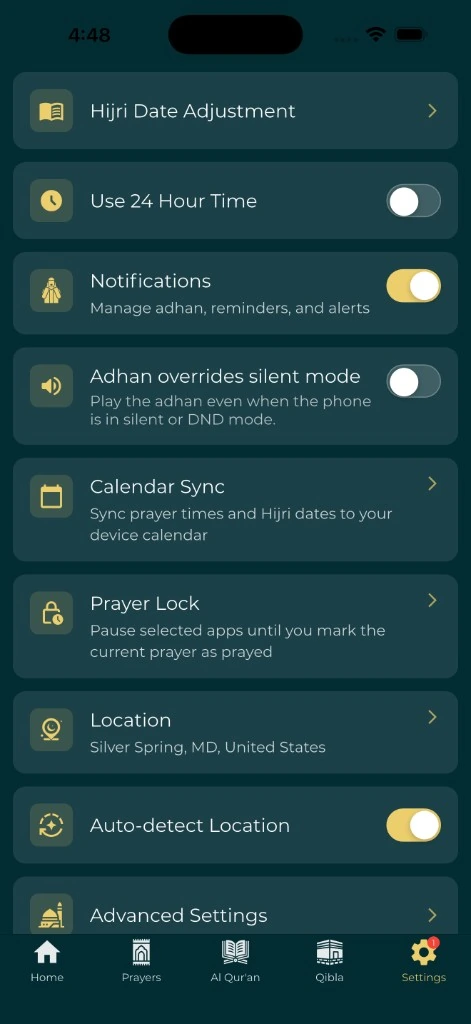
For prayer times, you often have a choice. The prayer times page says the mobile app can detect your location automatically or let you choose it manually; in the app, the automatic option is labeled Auto-detect Location. The web calculator works from a preset city, coordinates you type, or your browser's location if you tap Use my location. For Qibla without device location, the location-free Qibla guide shows the steps.
Set location access on iPhone
Apple's Location Services article gives the path. Open Settings, tap Privacy & Security, then Location Services. Scroll to the app and tap it.
You will see up to four choices, depending on the app:
- Never: the app cannot use Location Services.
- Ask Next Time Or When I Share: the app asks again, and you can pick Allow Once.
- While Using the App: access only when the app or one of its features is on screen.
- Always: access even when the app is in the background.
The same screen has a Precise Location switch. Apple says turning it off shares only your approximate location, which may be enough for apps that do not need your exact position.
Set location access on Android
Google's location settings article gives the path. Open Settings, tap Location, then App location permissions, and select the app. You can also touch and hold the app icon, tap App info, then Permissions, then Location.
Android offers similar choices: Allow all the time, Allow only while using the app, Ask every time, and Don't allow. Once location is allowed, a Use precise location switch appears on the same screen.
Everyday Muslim's location features work with while-in-use access, and the Android app does not request Allow all the time location.
Menu names can differ by phone maker. Google's app permissions article shows a second route through Settings, Apps, the app, then Permissions, where you can review every permission in one list.
A worked example: a prayer-times-only setup
This is an illustration, not a test result. Imagine someone in Leeds who wants prayer times and an adhan reminder, but does not use the mosque search.
They choose While Using the App on iPhone, or Allow only while using the app on Android. They leave precise location off at first. Then they open the app and check two things: the displayed place reads Leeds, and the times match their usual local timetable.
If the place or the times look wrong, they have two simple fixes. They can turn precise location back on, or they can keep it off and choose Leeds manually in the app. Either way, they check the result again before changing anything else.
When they travel, they look at the displayed place again rather than assuming it updated. The prayer travel checklist covers the date and time-zone checks that go with a trip.
Set notifications on iPhone and Android
On iPhone, Apple's notification settings guide says to open Settings, tap Notifications, then tap the app below Notification Style. There you can:
- turn Allow Notifications on or off
- choose where alerts appear: Lock Screen, Notification Center or banners
- tap Sounds, if the app supports it
- choose Immediate Delivery or Scheduled Summary
That last choice matters for prayer. A reminder held for a scheduled summary can reach you later than the prayer time. For time-bound alerts, choose Immediate Delivery.
On Android, Google's notification guide says to open Settings, tap Notifications, then App notifications, and select the app. Some apps split alerts into categories. Tap a category to see its own sound and alert options.
Android also has a separate Alarms & reminders permission for alerts at an exact time. Google's Tasks help gives the route: Settings, Apps, Special app access, Alarms & Reminders, then the app and Allow setting alarms and reminders. Android's developer notes say this access is denied by default for most newly installed apps on Android 14. Everyday Muslim asks for it, and without it the app schedules adhan reminders as inexact alerts, which Android can deliver a little late.
Check the app's own reminder settings
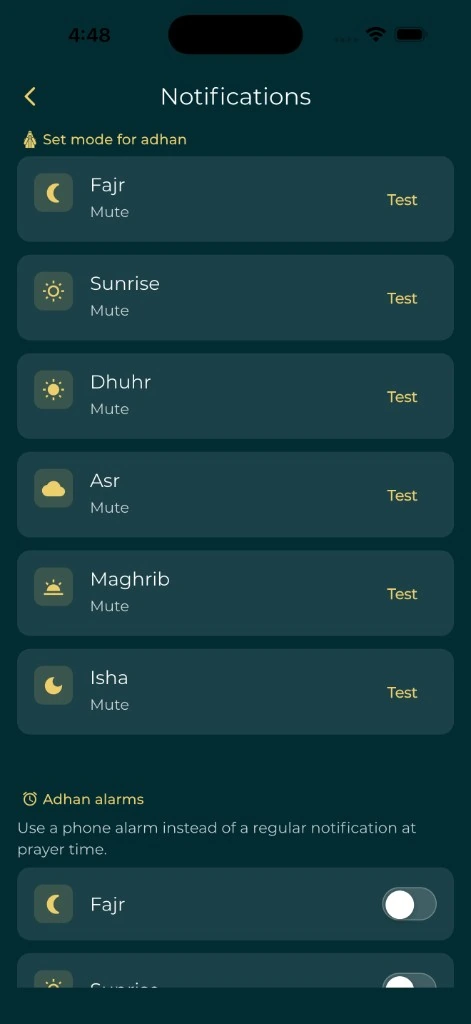
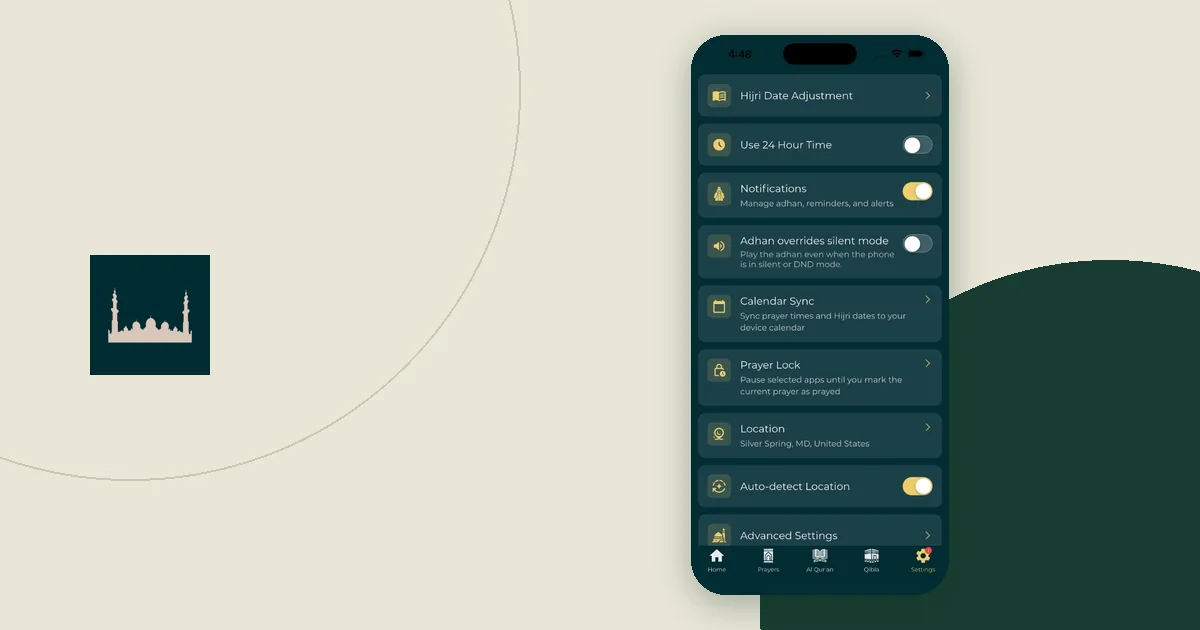
System permission only allows alerts. The app still decides which prayers notify you and with what sound. The adhan notification help page says an adhan set to None or a silent mode will not play an audible call. Everyday Muslim's Settings also has an Adhan overrides silent mode switch, which uses alarms, where your phone and OS version support them, to play audible adhan reminders while the phone is silent.
So check both layers. In the app, open the adhan settings and review the sound or mode for each prayer. On the phone, check the app's notification permission and any Focus or Do Not Disturb mode. Test in the phone mode you normally use.
Describe the result you expect in one sentence, such as "a visible alert with sound for Asr." The notification QA checklist shows how to record expected and observed results.
Know what a permission does not cover
A permission controls what the app can read on your phone. It does not explain what happens to that data afterwards. For that, read the app's privacy policy.
The Everyday Muslim privacy policy says location permission helps calculate prayer times, show the Qibla and find nearby places. It says nearby-place and map requests may send location or search details to the relevant service provider. During a nearby-place search, the app also records the search category, keyword, radius, latitude and longitude in Firebase Analytics.
Turning location off later does not delete records already stored. Turning off notifications does not delete an account. If you want deletion, follow the deletion route in the policy. The privacy policy reading guide explains how to find it.
Keep a short permission record
A few lines are enough. Here is one illustrative row:
| Feature | Permission chosen | Expected result | Observed result | Follow-up |
|---|---|---|---|---|
| Prayer times | While using, precise off | Leeds shown; times match local timetable | Fill in after checking | Choose city manually if needed |
Look at the record again after a phone update, a new phone or a new feature. Keep each permission tied to a task you checked. More access does not fix a calculation method or a prayer's sound.