Privacy & technology
Prepare Your Islamic App Before an Offline Trip
List the tasks you need offline, finish Quran audio downloads, test with Wi-Fi really off on iPhone or Android, label timetables and check your backup.
Editorial writing date:
Before a trip with little or no internet, test the exact tasks you will need in Everyday Muslim, or any Islamic app, without a connection. Download the Quran audio you plan to use, confirm the download finished, then turn off both mobile data and Wi-Fi and try each task. Keep a labeled fallback copy of anything essential, such as the destination prayer timetable.
An app that opens offline has passed only one small test. Reading a saved passage, playing a different surah, checking a new city's schedule and syncing with a partner can each need something different.
Key Takeaways
- Write a short list of the tasks and content you need before you start downloading.
- Download recitation while connected, and wait until the app shows it is complete.
- Airplane Mode may leave Wi-Fi on, so check the Wi-Fi switch itself during a test.
- Avoid clearing the app's cache or storage before the trip.
- Downloaded audio, cloud backup and Khair Partners sharing work differently offline.
List the tasks you need offline
"Use the app offline" is too broad to test. Write down what you expect the phone to do. A short list might be:
- Read Surah Al-Kahf on Friday.
- Listen to Juz 30 with a chosen reciter.
- Open a saved travel dua.
- Check prayer times for each city on your route.
Add your stops and dates too. A timetable for home and an audio file for a reading session solve different problems, so name and check them separately. The Muslim travel checklist for your phone covers wider trip preparation, such as charging and documents.
Leave a few days before departure, so a failed download can be fixed at home.
Example: an offline trip checklist
Here is an illustration of a checklist for a three-day trip. It is a sample, not a list of tested results.
Three days before
- Download Juz 30 with your chosen reciter and wait for it to finish.
- Check free storage on the phone.
- Run a backup and note the date shown as successful.
Test day, at home
- Turn off mobile data and Wi-Fi, and confirm both switches are off.
- Check today's prayer times and tap Test Adhan Notifications to schedule test alerts.
- Play the first surah of the download, then one near the end.
- Open the Quran text and a saved dua.
- Close the app fully, reopen it and play audio again.
- Turn connections back on.
The day before leaving
- Re-check that the downloads still show as complete and play offline.
On arrival
- Confirm the local date, time zone and selected location.
- Compare the prayer times with your labeled timetable.
Finish the Quran audio downloads
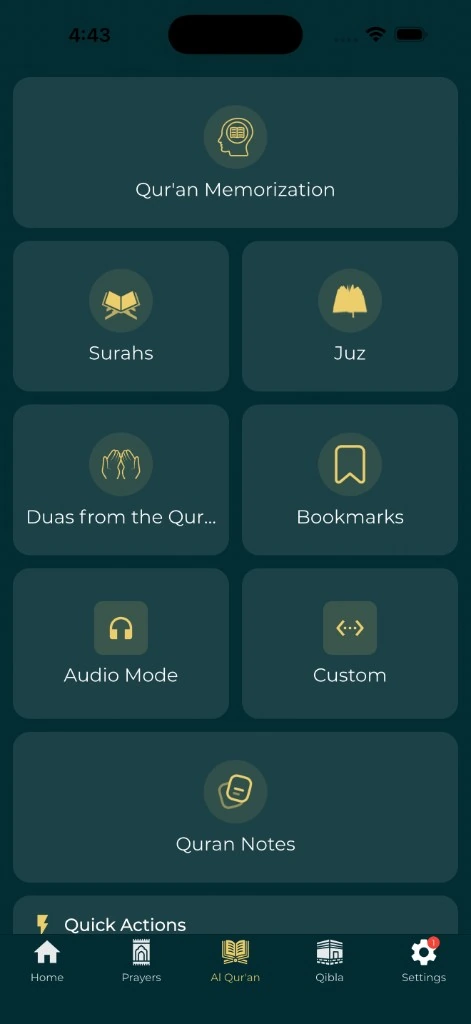
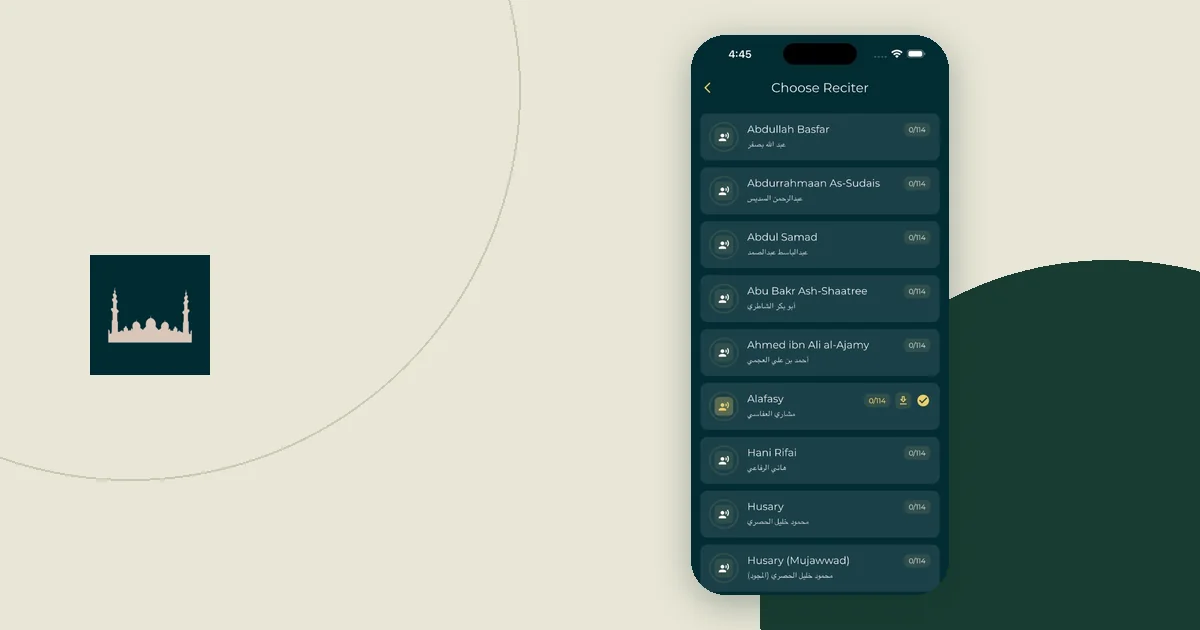
The Quran guide explains that you can stream recitation when connected or download audio before going offline. In the current app, you can download recitation for a surah, a juz or the whole Quran. The app saves it one ayah at a time and counts a download as complete only after every recording in it is checked. If some ayahs fail, the download is marked incomplete. Finish it before you leave.
Test the exact selection you plan to use. One downloaded surah does not mean another surah, or the same surah with another reciter, is ready. Reading the text and playing audio also need separate checks. The reading and listening session guide can help you pick a small set worth preparing.
Make sure there is room for the files:
- On iPhone, Apple's storage article says to go to Settings > General > iPhone Storage. Be careful with Offload App for the app you need. Apple says it frees the app's storage but keeps its documents and data. The app itself is removed until you download it again, which needs a connection.
- On Android, Google's storage guide says to open Settings > Storage. Google warns that Clear storage permanently deletes all app data.
Everyday Muslim keeps downloaded recitation in its audio cache. On Android, clearing the app's cache or storage in phone settings can remove those downloads, so leave both alone before the trip. On iPhone, Apple's storage article says that when the device is low on storage it frees space by removing items you can download again, such as temporary files, and that it removes cached files when it needs more space. Keep free space on the phone, and re-check your downloads shortly before you leave.
Test with every connection really off
Pick a quiet moment, turn off mobile data and Wi-Fi, then look at each switch to confirm it is off. Airplane Mode alone may not be enough:
- On iPhone, Apple's Airplane Mode article says that if the airline allows it, "you can still use Wi-Fi and Bluetooth in Airplane Mode."
- On Android, Google's Pixel guide says Wi-Fi and Bluetooth turn off the first time you use Airplane mode. After that, "your phone will remember your previous setting." If you turned Wi-Fi back on during an earlier flight, it may stay on. Other Android phones can use different labels.
Then run the tasks from your list:
- Open the reading content you planned.
- Start the downloaded audio.
- Open a different section, not only the one already on screen.
- Skip to a later part of the audio.
- Close the app fully, reopen it and repeat one task.
Note what worked and what was missing. This checks your setup today, not after an update. Turn connections back on afterwards, and follow the transport operator's instructions during the journey.
Label saved timetables with place and date
Keep destination records clear. Save the city, the local dates, where the times came from and the calculation settings with any screenshot. Avoid a file called just "prayer times" when the trip has several stops.
Time zone rules change. The IANA Time Zone Database is "updated periodically" for changes such as time zone boundaries, UTC offsets and daylight saving rules. An offset you remember from an earlier trip may not be right now.
A saved timetable belongs to the place and dates written on it. It does not show that the app has detected your new location. The travel time zone checklist covers the arrival check in more detail. If you need Qibla on the trip, test it separately; a working audio download says nothing about it.
Know what works offline and what needs a connection
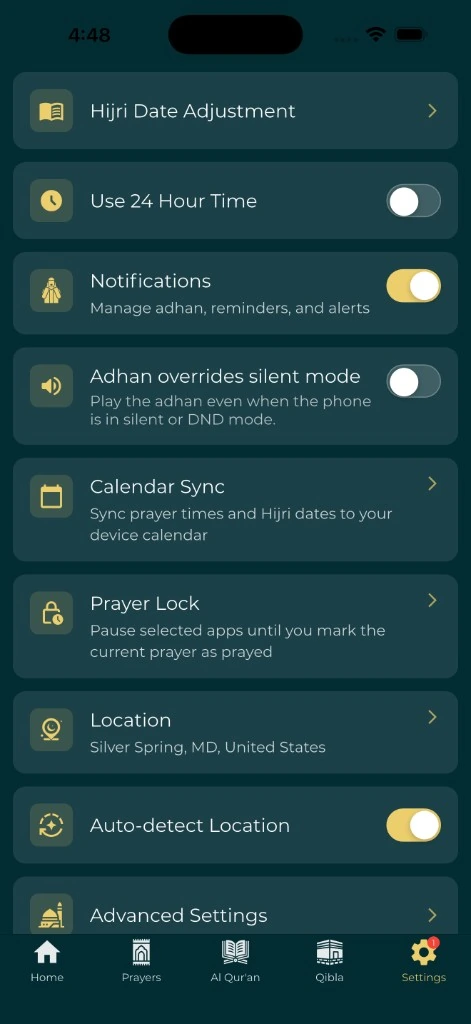
In the current app, prayer times are calculated on the phone from your saved location and settings, and adhan notifications are scheduled on the phone, so neither needs a connection once set. Detecting a new city is a separate step, which is why the arrival check matters.
| Item | Works offline? | What to check before leaving |
|---|---|---|
| Prayer times and adhan notifications | Yes, for the saved location | Today's times match your timetable, and a test adhan plays with Wi-Fi off |
| Qibla compass | Uses the phone's sensors; the map view needs map data | The compass points the same way as a trusted reference |
| Downloaded Quran audio | Yes, once complete | The download shows as complete and plays with Wi-Fi off |
| Streaming recitation | No | Download anything you need instead |
| Saved timetable screenshot | Yes | City, dates and source are written on it |
| Cloud backup | No | The latest successful backup date |
| Khair Partners sharing | No | What has already synced before you leave |
The backup and restore guide says to check the latest backup date and wait for the app to confirm the result. Turning on automatic backups does not prove your latest changes have uploaded. The service currently keeps the five most recent backups.
Khair Partners and other shared features need online services. They are not a live channel when you have no signal. Anything you share will reach partners only after the phone is back online and the update has synced.
Do not sign out, clear app data or reinstall as an offline experiment unless you have a backup you have checked.
Keep a fallback and check again on arrival
Keep essential references in a form you have already opened offline, such as a labeled screenshot, a saved document or a paper note. Think about privacy before printing or displaying personal records.
When you arrive, confirm the local date, time zone and selected location before relying on the destination schedule. When the connection returns, check that backups and shared updates actually went through instead of assuming they did.