Prayer & daily life
A Muslim Travel Checklist for Your Phone
A phone checklist for Muslim travel: destination prayer times, a saved Qibla bearing, offline maps on iPhone and Android, permissions and an arrival routine.
Editorial writing date:
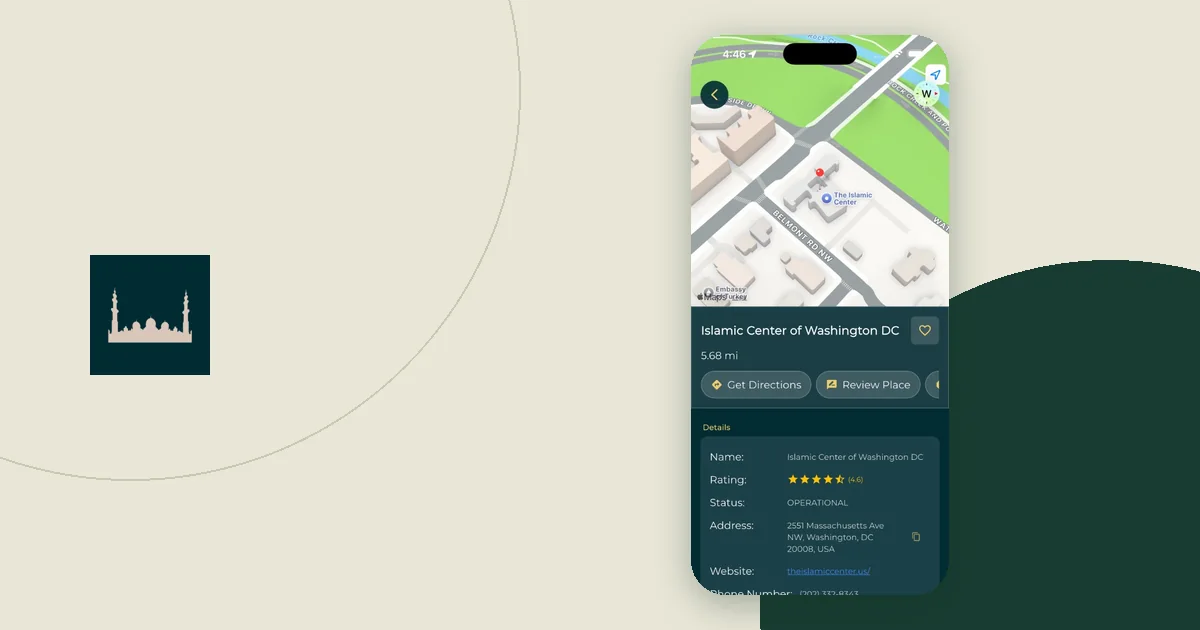
Set up your phone for the place you are going, not the place you are leaving. Before the trip, save one note per stop with local prayer times, a Qibla bearing and key contacts. Download offline maps and test them with the network off. After you land, check the time zone, the prayer settings and your reminders. When you get home, switch everything back.
Key Takeaways
- Write one destination note per stop, labeled with the city and date.
- Save the Qibla bearing with its reference, for example "292.5° from true north."
- Offline maps differ: Google Maps offline has no walking, transit or cycling directions, while Apple Maps offline includes them.
- After arrival, confirm the phone's time zone before you trust any prayer time on screen.
Before you leave: the checklist
Work through this list a few days before departure, while you still have a good connection:
- Write a destination note for each stop.
- Check prayer times for each city and date, with the calculation method shown.
- Calculate and save the Qibla bearing for each city.
- Download offline maps for each area you will visit.
- Turn the network off and test the offline maps, saved notes and any downloaded Quran audio.
- Send yourself one test prayer reminder.
- Review location permissions for the apps you will use on the trip.
- Save local contacts: accommodation, a nearby mosque if you have verified one, and an emergency number.
Write one destination note per stop
One short note beats a camera roll full of unlabeled screenshots. Use the same headings every time:
- City and dates of stay
- Accommodation name and phone number
- Prayer times for the first day, with the date and calculation method
- Qibla bearing and its north reference
- Time zone
- A verified mosque or prayer room, with the source and the date you checked
- Open questions, for example "Ask reception if there is a prayer room"
Keep facts and to-dos apart. "Ask reception about a prayer room" is a task. "Prayer room on floor 2" is a claim you still need to confirm. Keeping them separate stops an old guess from turning into a fact you rely on.
Example: a destination note for Kuala Lumpur
This is an illustration for a trip from London on 14 December 2026, not a timetable to follow. The prayer times come from this site's prayer times tool for central Kuala Lumpur, using the Singapore method and the Shafi Asr setting. Your hotel's position, date and settings will give different times.
| Item | Saved value |
|---|---|
| City and date | Kuala Lumpur, Monday 14 December 2026 |
| Time zone | Asia/Kuala_Lumpur |
| Prayer times | Fajr 5:46 AM, Dhuhr 1:09 PM, Asr 4:32 PM, Maghrib 7:07 PM, Isha 8:21 PM |
| Qibla bearing | 292.5° from true north, city center, roughly west-northwest |
| Magnetic declination | About 0° (BGS World Magnetic Model value for 5 November 2026), so a magnetic compass reads almost the same |
| To confirm on arrival | Hotel prayer room, nearest mosque's congregation times |
For comparison, the same tool gives Maghrib at 3:54 PM in central London on that date. A London screenshot opened in Kuala Lumpur would be wrong by hours, not minutes. The Kuala Lumpur Qibla page shows the same city-center bearing.
Check prayer times and the time zone
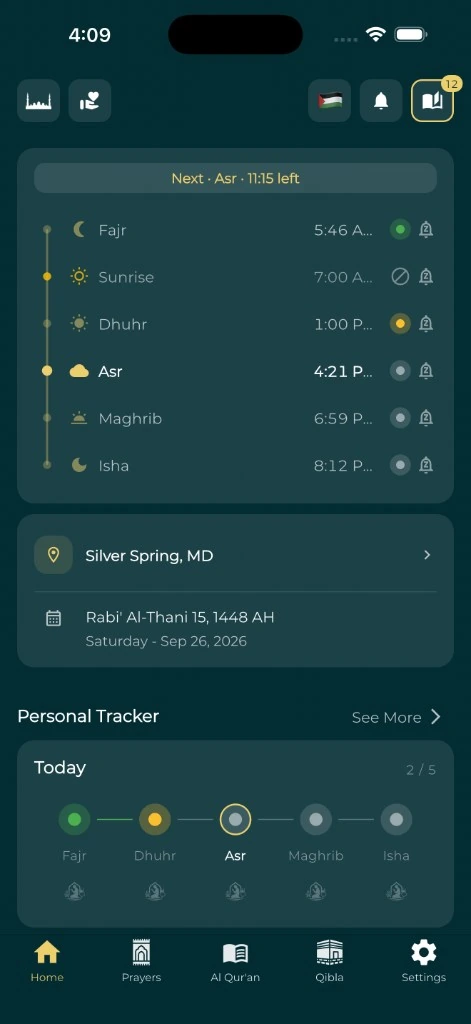
Open the prayer times tool, select the destination and date, and check the method shown. The Adhan calculation library treats coordinates and the display time zone as separate inputs. A correct calculation shown in the wrong time zone still gives the wrong clock time.
Your phone usually changes time zone by itself, but check how it is set:
- iPhone: Apple's date and time guide says the time zone is set automatically, but you can change it manually if Location Services is off or you have no service. The settings are under Settings > General > Date & Time.
- Android: Google's Android clock help puts the setting in the Clock app under More > Settings > Change date and time, where you can turn on "Automatic time zone." It notes that only some devices can set the time zone automatically.
A calculated time is a planning tool. It is not a mosque's congregation schedule, and it does not answer questions about shortening or combining prayers on your trip. The time-zone checklist for prayer while traveling covers the handover between zones in more detail.
Save a Qibla bearing you can explain
Calculate the bearing for each city in the Qibla finder and write it down with "from true north." A number you can explain is more useful than an arrow you cannot check.
A phone compass reads a separate input, the phone heading, which can be disturbed by metal and magnets. Save the bearing anyway, so you can use it with a north-up map if the arrow misbehaves. The four-step Qibla compass check shows how to tell a wrong city from a sensor problem, and the guide to setting up a prayer space in a hotel room covers the room itself.
Test offline maps on your platform
Download maps while you still have Wi-Fi, then test them. The two main map apps behave differently offline:
| Google Maps (from its Android help page) | Apple Maps (iPhone) | |
|---|---|---|
| How to download | Search for a place, swipe right on the place sheet, tap More, then "Download offline map" | Tap your picture, then Offline Maps > Add Offline Map |
| Directions offline | Driving only; no walking, transit or cycling | Driving, walking, cycling and transit |
| Coverage | Not available in some countries or regions | Not available in all countries or regions |
| Updates | Maps expire; they update on Wi-Fi within 15 days of expiry | Automatic Updates is on by default |
Sources: Google's offline maps help and Apple's offline maps guide.
So a saved Google map may not give the walking route to a mosque you planned to use. To test, turn on airplane mode, open each saved map, and try the exact route type you need. Do the same for saved notes and any downloaded Quran audio. A test of one item does not prove that everything else works offline. The guide to preparing your Islamic app before an offline trip goes through app content one feature at a time.
Check reminders and permissions
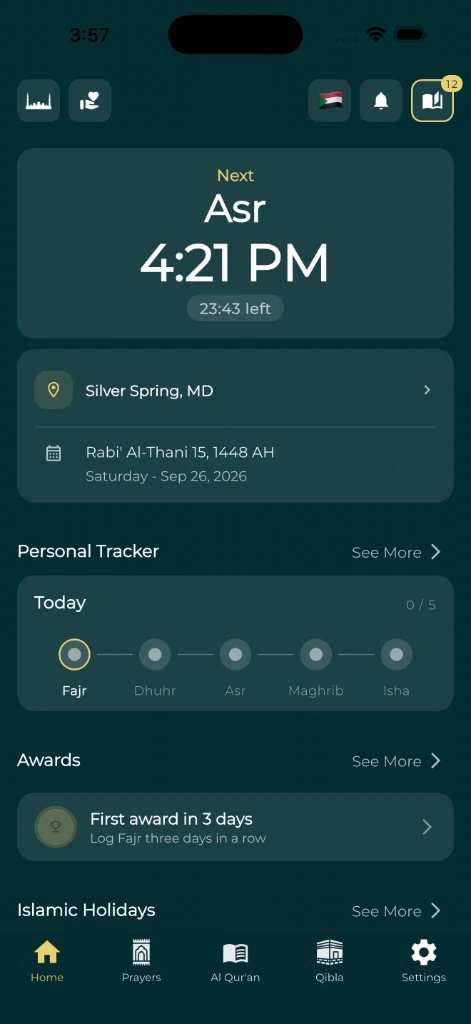
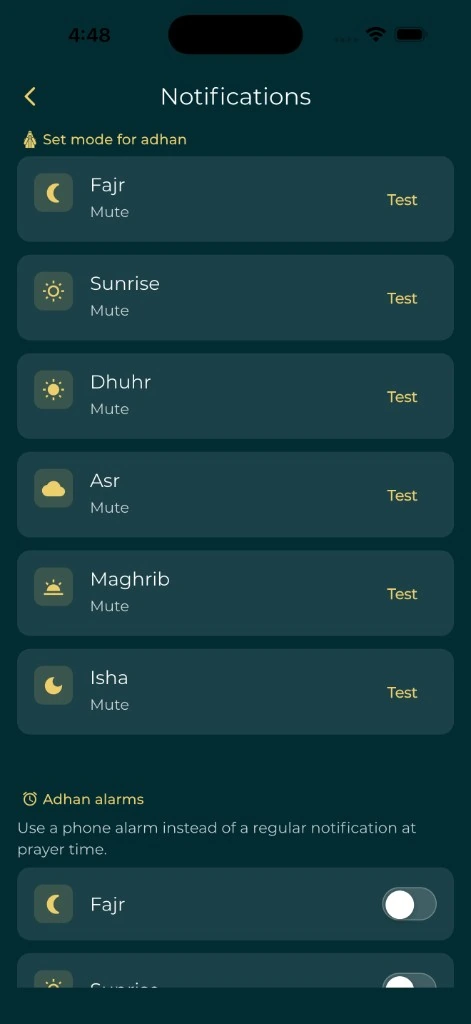
Choose which alerts you want while traveling and which can wait. Send yourself a test reminder before you leave, then check again after arrival.
Review location permissions one app at a time:
- iPhone: Apple's location guide says to go to Settings > Privacy & Security > Location Services, select an app, then turn Precise Location on or off.
- Android: Google's Android guide says to touch and hold the app icon, tap App info > Permissions > Location, then choose a level and switch "Use precise location" on or off.
Do not grant extra access just because you are in a hurry at the airport. If you restrict a permission, test the feature it affects before you rely on it. A permission screen also does not tell you what a service collects; read its privacy policy for that.
After you arrive: the checklist
Once you are safely settled, run through this list:
- Confirm the phone shows the local time and date.
- Confirm the prayer tool shows the right city, date and method.
- Compare the next prayer time with a local mosque or another trusted local source.
- Check whether the accommodation has a prayer room or Qibla marker.
- Check the Qibla direction in the room you will use.
- Open your saved maps and notes once to make sure they still load.
These are practical checks, not rulings on travel worship. For a religious question, ask a qualified teacher and give them your itinerary and circumstances.
When you get home: the checklist
- Switch the prayer tool back to your home city.
- Restore your usual reminders.
- Delete or archive trip screenshots so they are not mistaken for current times.
- Remove notes with private details you no longer need.
- Delete offline maps you will not use again, to free up storage.
- Write down anything that failed and what fixed it.
That last note makes the next trip's preparation more specific. Keep it short: what you expected, what happened, and which setting or backup helped.