Ramadan & fasting
Use a Fasting Tracker as a Record, Not a Ruling
Log each fast with the right date, a Yes or No answer, labels and a short note. Keep scholar questions separate, and check backup and sharing first.
Editorial writing date:
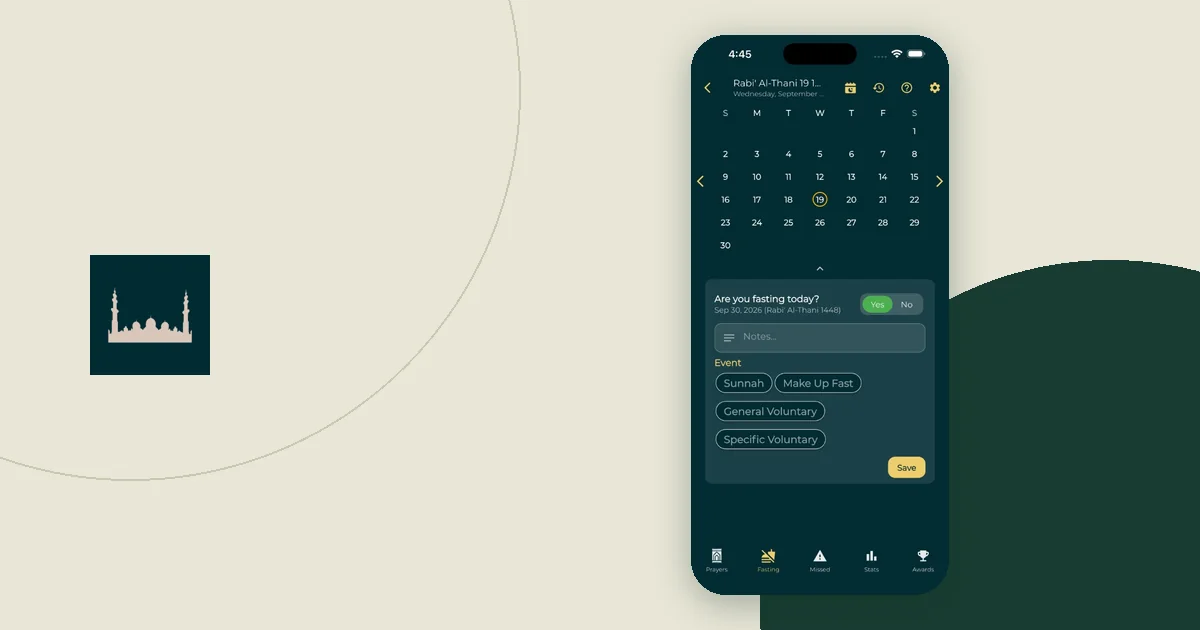
A fasting tracker stores what you tell it: the date, whether you fasted, a label and a note. Use it to remember facts, such as which days you fasted and which make-up fasts you have kept. Do not use it to decide whether a fast counted, whether an exemption applies or how many days you owe. Those are questions for a qualified scholar. Keep each question in a note until you have an answer, and keep your count separate from it.
Key Takeaways
- Check the selected date before you save, especially when logging past days.
- Each entry is one Yes or No answer, optional labels and an optional note. During Ramadan, a Yes gets the Ramadan label automatically.
- Picking a label records what you believe happened; it does not settle a ruling.
- A blank day is just a blank day. It tells you nothing about why.
- Keep scholar questions in a separate list, and check backup and Khair Partners sharing before you rely on the record.
What one entry holds
In Everyday Muslim, the fasting tracker records Ramadan, Sunnah and make-up fasts with calendar history and notes. Its feature page is direct about the limit: it "does not determine your religious obligations." The tracker is part of the app on both iPhone and Android.
When you log a day, the app asks "Are you fasting today?" and offers Yes or No. Each answer has four parts you can use:
- The date. The day the entry belongs to.
- Yes or No. Whether you fasted.
- A label. These are chips under the heading Event (after Yes) or Reason (after No). After Yes, it offers a fast type: Ramadan during Ramadan, or types such as Sunnah and Make Up Fast at other times. After No, it offers reason labels such as Sickness or Traveling.
- A note. A short line of your own.
The labels help you sort your history later. They are not a verdict. Al-Baqarah 2:184 and 2:185 mention illness and travel and making up the same number of days later. How that applies to one person's illness or journey needs a scholar's answer. Tapping "Sickness" stores a word. It does not decide anything.
A worked example: three days in one week
This is an illustration with invented entries, not a model of anyone's fasting. Imagine a person logging the end of a week in Ramadan. Here is what they enter and what they keep elsewhere.
| Day | Answer | Label | Note in the app | Kept outside the tracker |
|---|---|---|---|---|
| Wed | Yes | Ramadan | (none) | Nothing |
| Thu | No | Traveling | "Train to Leeds, back Fri" | A question for the imam about the journey |
| Fri | Yes | Ramadan | "Logged on Sat" | Nothing |
Three things make this record useful later. First, Thursday's note states a fact, not a conclusion. It says where they went, not "exempt." Second, the open question sits in a separate list, so the tracker never shows an answer they do not have yet. Third, Friday's note shows it was entered a day late, from memory.
Later, the imam answers. Whatever the answer, the person writes it and its date next to the question. If it involves a make-up fast, they log that day with Yes and the Make Up Fast label once they have kept it. The tracker now shows what happened, in the order it happened.
Check the date before you save
Logging past days is an easy place to slip. Today's date can be on screen in one place while the calendar is open on another day. Look at the selected date before tapping Save, and log one day at a time when catching up.
If the day involved a fasting boundary, save the timetable you used: place, date and source. Al-Baqarah 2:187 describes eating until dawn and completing the fast until nightfall. A verse link alone does not say which local time you followed that day. The suhoor and iftar reminder guide explains how to keep a named timetable for this.
Read blanks and counts carefully
A blank day could mean you forgot to log it, your phone was off, or nothing happened that you wanted to record. The tracker cannot tell which.
A Yes entry has limits too. Sahih al-Bukhari 1903 reports that Allah has no need of a person leaving food and drink if they do not give up false speech and evil actions. A tick on a calendar cannot measure that. It records that you did not eat; it says nothing about conduct or acceptance.
So when you review a month, read the record for the few facts it holds. Count your make-up fasts from Yes entries labelled Make Up Fast. Count what you still owe only from the answer a scholar gave you, and write that answer's date in your notes.
Keep scholar questions in their own list
Write each question with the facts someone would need: the date, what happened and what you want to know. A note app works, and the private reflection journal guide shows how to check where those notes are stored before you rely on them.
Do not squeeze a question into the tracker as a Yes or No to make the calendar look complete. An honest blank is better than a guess. And do not explain private reasons in a group chat to justify a gap.
Check backup and sharing before you depend on it
Two settings change who can see your record and whether you can get it back.
- Sharing. Khair Partners lets you choose fasting as an area to share with a partner, and the selected areas sync to that person. Check what each partner can see before you add reason labels or notes.
- Backup. The backup and restore help page explains that cloud backup uses the app's sign-in, covers the categories you select, and keeps the five most recent backups. Check the date of the last successful backup before moving phones or clearing app data, whether you use iPhone or Android.
Fix a wrong entry without starting over
Say you notice that Friday's fast was saved on Saturday by mistake. Saving a day again replaces that day's entry, so you can correct it in place:
- Open the fasting tracker and tap Saturday on the calendar. For a past day the app asks "Did you fast on this day?"
- Change the Yes or No answer, the chips under Event or Reason, and the note so they match what really happened on Saturday, then tap Save.
- Tap Friday, choose Yes, pick its label (set automatically in Ramadan), and tap Save. A note such as "moved from Sat" can stop you wondering later.
There is no button to erase a single day back to blank, so make each corrected day say what actually happened.
Do not add extra Yes entries to rescue a streak or round off a total. A personal record is worth keeping because you can correct it. The Ramadan planning guide suggests a weekly review time when small fixes like this fit easily.