Duas & remembrance
Keep a Private Reflection Journal on Your Phone
Set up a private phone journal on iPhone or Android: check the lock, account, sharing and backups with a test note, then write with three short prompts.
Editorial writing date:
Before you write anything personal, check four things: the phone's screen lock, the account the note belongs to, who it is shared with, and where its backups go. Test all four with a harmless note first. An app called "Notes" does not by itself mean a note stays on your phone or that nobody else can read it.
Journaling is an optional way to organize your thoughts. It is not a religious requirement, and no app can promise it will make you feel a certain way.
Key Takeaways
- Write down only the personal detail you actually want to keep.
- A screen lock, a note lock, the note's account and its sharing list are four separate checks.
- On iPhone, Apple Notes cannot lock a shared note, a note with tags, PDFs, audio or video, or a note synced from Gmail or another IMAP account.
- On Android, Google Keep collaborators can edit a shared note, and a Keep export includes the collaborator list.
- Khair Notes in Everyday Muslim are part of a social feature, not a private journal.
Decide who should be able to read it
Start with one question: who should be able to open this journal? Then list the ways someone could reach it:
- a person borrowing your unlocked phone
- another device signed in to the same account
- a collaborator added to a note or folder
- anyone with access to a backup or an exported file
- a notification or preview showing a note's title
You may decide some reflections do not belong on a phone at all. You can also keep entries general: a question and a next step, without names or detailed accounts of other people.
Know where the note lives on iPhone and Android
Apple Notes and Google Keep handle these checks differently. Compare the one you use with its own help pages.
| Check | Apple Notes on iPhone | Google Keep on Android |
|---|---|---|
| Phone lock | Your iPhone passcode, which Notes can also use as its lock | Settings, Security, Screen lock: PIN, pattern or password (Google's guide) |
| Note lock | Lock a note with the iPhone passcode or a separate Notes password (Apple's guide) | No single-note lock in the Keep help pages linked here; on Android 15 and up, private space can put a whole notes app behind a separate lock |
| Account | iCloud or notes stored on the device; Gmail and other IMAP notes cannot be locked, nor can notes with tags, PDFs, audio, video or iWork documents | Your Google Account |
| Sharing | Shared notes cannot be password protected | Collaborators can edit text, lists, images, drawings and audio (Google's sharing guide) |
| Export | Open in Pages, a PDF, Markdown or a printout; a locked note must be unlocked before it goes to Pages (Apple's export guide) | Download includes note content, attachments and collaborators (Google's export guide) |
Apple makes two further points. If you use a separate Notes password and forget it, Apple cannot help you open notes locked with it. And for iCloud accounts, both lock options use end-to-end encryption. Do not assume another app's lock icon means the same thing.
For a stronger Android barrier, Google's private space guide describes a separate space, under Settings > Security & privacy > Private space, with its own lock for the apps you install there. It works on Android 15 and up, locks an app rather than one note, and Google says on-device private space data isn't backed up.
Google notes that a PIN, pattern or password also keeps the phone's backups encrypted with your lock. It also says menu names can vary by device, so look for Security under a slightly different name if needed.
Where Everyday Muslim fits
Everyday Muslim has Khair Notes inside Khair Partners, its optional accountability feature. Khair Notes are messages of encouragement between partners and groups. The feature page states that Khair Partners profiles, groups, notes and selected shared activity can be stored using Firebase services.
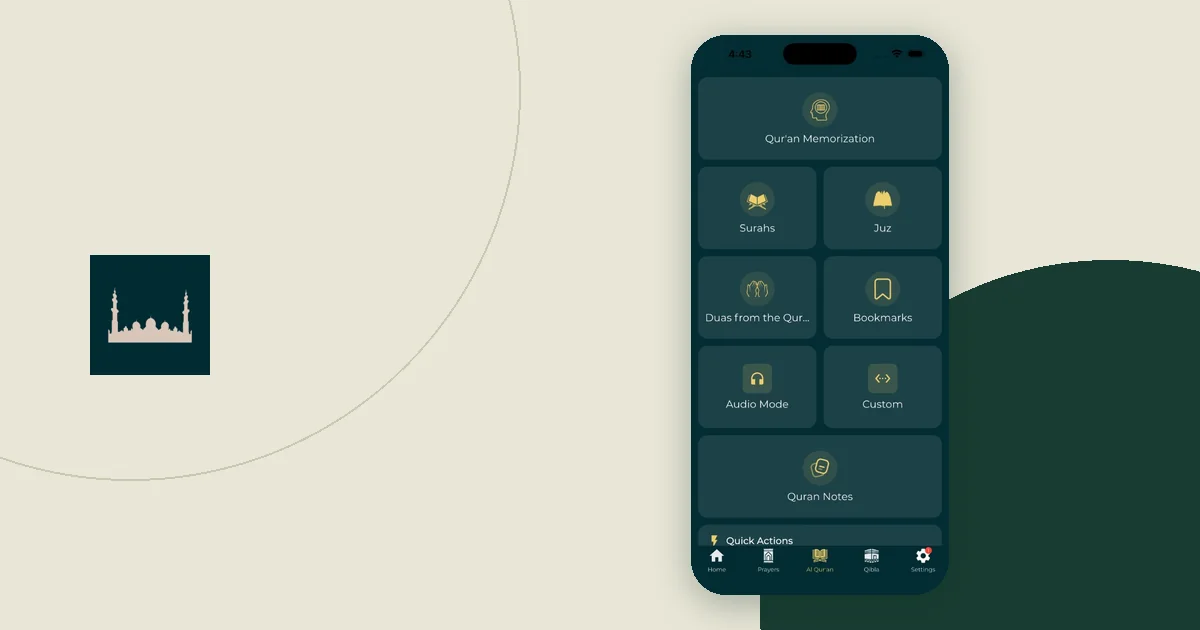
The app also has Quran Notes, in the Quran menu, for thoughts and reflections on the Quran. You can attach a note to a surah or ayah. These notes are saved in the app's storage on your phone. Like other app data, they can be copied by the phone's own backups: on iPhone, iCloud Backup and computer backups include app data, and on Android a transfer to a new phone may copy it. They also go into the app's optional cloud backup, stored using Firebase, if you include Quran Notes there; the guide to backing up worship notes explains how to check that choice. The app has no separate lock for Quran Notes, so anyone who can open your unlocked phone and the app can read them. Quran Notes suit reflections tied to a verse, and the Quran bookmarks and notes guide shows how to use them.
Khair Notes, by contrast, are not a private journal. Use them for what they are built for, and keep personal reflection in a note you control. The current privacy policy describes the online features, and the privacy policy reading guide shows how to separate specific statements from broad wording.
Run a five-minute privacy test
The steps below illustrate a personal configuration check, using the settings Apple and Google describe. They are not a formal security test or a guarantee against every kind of access.
On iPhone with Apple Notes:
- Create a note titled "Privacy test" with one harmless line. Check that it is stored in iCloud or on the device, not in a Gmail account.
- Tap the More button, then Lock. Choose the iPhone passcode or a Notes password.
- Switch to another app, then return. Apple says a locked note stays open for several minutes and locks again when you close Notes or the phone sleeps. Close Notes fully and reopen to see the lock.
- Look at the note in the list. Make sure the title does not reveal more than you want.
- Check that no people are shown on the note. If someone is, Apple's lock guide gives the route: tap the sharing contact's icon or Add People, then Manage Shared Note > Stop Sharing.
- Check notification previews. Apple's notification settings guide says to go to Settings > Notifications > Show Previews and choose When Unlocked or Never. You can also set this per app.
On Android with Google Keep:
- Set a PIN, pattern or password under Settings, Security, Screen lock if you have not already.
- Create a note titled "Privacy test" with one harmless line.
- Open the note, tap Action, then Collaborator. Confirm no one else is listed, and remove anyone who should not be.
- Open Keep on any other phone, tablet or computer signed in to the same account. If the note appears there, that device is part of your privacy boundary.
- Lock the phone and check what the lock screen shows.
If anything surprises you, fix it before writing a real entry. Then repeat the test.
Keep the writing prompts modest
A short, optional structure is enough:
- What did I learn or notice today?
- What question needs a reliable answer?
- What small practical step do I want to take next?
An illustrative entry, invented for this guide, might read: "Noticed I rushed Asr at work again. Question for my teacher: what is the latest time for Asr where I live? Next step: move my afternoon meeting reminder 10 minutes earlier." Three lines are enough.
If you want a Quranic starting point, Al-Hashr 59:18 asks every soul to "look to what ˹deeds˺ it has sent forth for tomorrow," in Dr. Mustafa Khattab's translation on Quran.com. Read it in context. Using it as a prompt is your own choice, not an instruction about journaling.
Skip prompts you do not need, and stop if the journal turns into a reporting task. Avoid grading your faith, comparing your worship with someone else's, or guessing at another person's intentions.
When an entry includes a dua or verse, keep the reference apart from your own words. The personal dua collection guide shows how to label the two.
Plan backups without making more copies than you need
Every backup or export is another copy with its own access rules. For each one, ask which account holds it, which devices can open it and what happens if you lose access.
A Google Keep download is a good example. It includes note content, attachments and the names of collaborators, and it only includes notes that have not been deleted. Google does not say the exported file keeps any lock. Decide where that file will be stored before you create it, and delete stray copies from your Downloads folder.
The worship-notes backup guide gives a fuller checklist for choosing and checking a backup.
Recheck when your setup changes
Run the five-minute test again whenever something changes: a new phone, a new account, or a tablet the family shares. If relatives can see your screen or follow your progress, the family reminders privacy guide covers what nearby people can see.
Deleting works differently in each app, too. Google says that if you delete a shared Keep note you own, it is deleted for everyone. Apple says removing a note's lock removes it on every device signed in to the same Apple Account. Screenshots, exports and forwarded copies each need their own clean-up.