Ramadan & fasting
Organize Suhoor and Iftar Reminders for Your Home
Set suhoor and iftar preparation reminders on iPhone or Android from a local timetable, label them clearly, test them and move fixed alarms as times change.
Editorial writing date:
Take the Fajr and Maghrib times from one trusted local timetable. Then set separate preparation reminders with labels that say what to do, such as "Start suhoor food" or "Lay the iftar table." A preparation reminder tells you to get ready. It never marks the end of suhoor or the moment to break the fast. Test each reminder on the phone that will use it, and move fixed alarm times as the month goes on.
Key Takeaways
- Use one named local timetable for Fajr and Maghrib, and save its date range.
- Give every preparation reminder a label that names a task.
- A Clock alarm and an app notification behave differently; test each one.
- Fajr and Maghrib move during Ramadan, so a fixed alarm needs a weekly check.
Know which times you are working from
Al-Baqarah 2:187 allows eating and drinking until the light of dawn appears, then completing the fast until nightfall. To apply that at home, choose one local timetable, such as your mosque's Ramadan sheet, and ask the people who publish it if something is unclear. Questions about an "imsak" column (a cautionary stopping time some timetables print a few minutes before Fajr) or two timetables that disagree belong with that local authority, not with an alarm app.
Sahih al-Bukhari 1923 records the encouragement to take suhoor because there is blessing in it. It does not set an alarm time. How early you get up depends on your household.
To cross-check a timetable, use the online prayer-times calculator with the same city, date and method. The website calculates times; it does not send adhan notifications. If the two disagree, the guide to why prayer apps show different times lists the settings to compare.
Three kinds of alert, three different jobs
Keep these apart on every phone in the home:
| Alert | Example label | What it does | What it is not |
|---|---|---|---|
| Preparation reminder | Start suhoor food | Tells one person to begin a task | The end of suhoor |
| Timetable check | Check tomorrow's times | Prompts a look at the saved sheet | A source of times |
| Prayer notification | The app's own prayer name, e.g. Fajr | Comes from your prayer app's settings | A household task |
The example labels are suggestions, not religious wording. Avoid a vague label like "fasting alarm." A sleepy person should be able to read the label and know what to do.
Set a preparation reminder on iPhone or Android
Use the phone's Clock app for preparation reminders. The steps differ a little by platform.
- Open the Clock app and add an alarm. On iPhone, Apple's alarm guide covers the time, Label, Repeat and Sound options. On Android, Google's Clock guide covers adding an alarm, naming it and choosing repeat days.
- Type a task label. Use the label field on iPhone or the alarm name on Android.
- Choose a sound you will hear. Apple notes that an alarm with its sound set to None will only vibrate.
- Check what can silence it. Apple says Do Not Disturb, the Ring/Silent switch and Silent mode do not affect the alarm sound, and that alarm volume sits under Ringtone and Alerts in Sounds & Haptics. Google warns that Do Not Disturb can silence an alarm unless alarms are allowed in its settings, and that a low alarm volume can lead to a missed alarm.
- Set repeat days only if you will review them. A repeating alarm rings at the clock time you typed, every time.
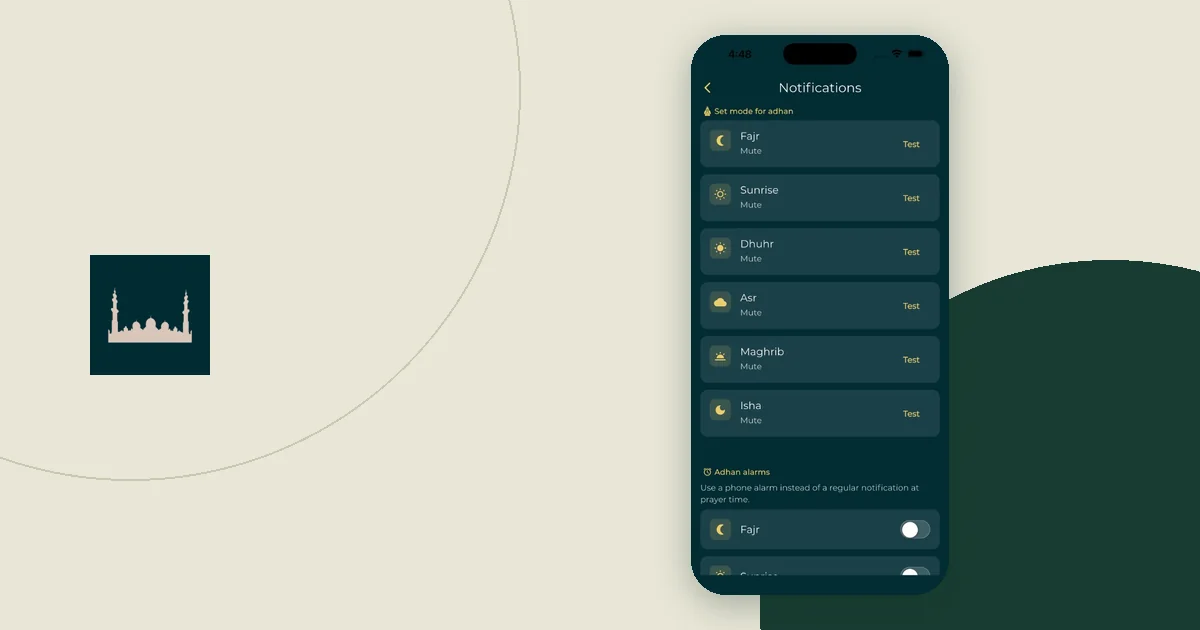
Prayer notifications work differently from Clock alarms. They depend on the app's own settings and the phone's notification settings: Focus and notification summaries on iPhone, notification channels and battery limits on Android. Use the adhan notification help page, which has separate iPhone and Android checks.
A worked example: why a fixed alarm drifts
This is an illustration, not a recommended alarm time. Suppose a London household sets one repeating alarm at 5:15 AM labeled "Start suhoor food," plus a reminder 30 minutes before Maghrib labeled "Lay the iftar table." They set both on the first day of Ramadan, assumed here to be Monday, 8 February 2027.
The times below come from this site's prayer engine for London (Moonsighting Committee method, Shafi Asr setting). Your local timetable may differ, and some timetables list an imsak time before Fajr.
| Date | Calculated Fajr | 5:15 AM alarm | Calculated Maghrib | Iftar-table reminder |
|---|---|---|---|---|
| Mon 8 Feb 2027 | 5:51 AM | 36 min before Fajr | 5:05 PM | 4:35 PM |
| Mon 22 Feb 2027 | 5:25 AM | 10 min before Fajr | 5:31 PM | 5:01 PM |
| Sun 7 Mar 2027 | 4:59 AM | 16 min after Fajr | 5:54 PM | 5:24 PM |
On the first day, the 5:15 alarm leaves 36 minutes before Fajr. Two weeks later it leaves 10. By the last week it rings after the calculated Fajr time. The phone did nothing wrong. It rang at the time it was given, while Fajr moved 52 minutes earlier.
The iftar reminder has the opposite problem. A fixed 4:35 PM alarm would be 79 minutes before Maghrib by 7 March, so the reminder must move later each week to stay 30 minutes ahead.
The fix is a weekly check. Every Sunday night, the person who owns the timetable reads the coming week's times and sets each suhoor alarm against the earliest Fajr of that week, which in this example is the last day. Plan iftar reminders against that week's earliest Maghrib, so no reminder lands late.
Test before the first night
Create a test alarm a few minutes ahead, labeled "TEST." Lock the screen, leave the phone where it will sit at night and wait. Did it ring at a volume you can hear across the room? Was the label readable? Then delete the test so nobody confuses it with a real reminder.
Test each phone on its own. Changing one person's alarm does not change anyone else's. When an app notification fails the test, work through the notification QA checklist. A passed test shows the setup worked that night. It cannot rule out a flat battery or a later settings change.
Share the plan, not everyone's alarms
Each person needs only the reminders for their own tasks. One person might own the suhoor food and another the iftar table. Write the owners, the timetable's name and the weekly check on a shared note. The Ramadan routine guide shows a full task page with backups.
When you travel, recheck the location and time zone before trusting any alarm. The travel time-zone checklist covers that change.
Keep a printed or saved copy of the timetable, with its place and date range, in case an alert does not appear. If you are unsure of a time, ask your local authority. A missing notification should never be the thing that decides when suhoor ends.