Privacy & technology
Make an Islamic App Easier to Read and Navigate
Fix one hard reading task at a time: adjust in-app Quran text, then iPhone or Android text size, check contrast and labels, and report what still breaks.
Editorial writing date:
Start with one task that feels hard, such as reading a prayer time, following Arabic text or finding your way back to a bookmark. Change the setting closest to that task first, usually the app's own reading controls. Then try the same task again. Only move on to phone-wide text settings, colors or navigation if the problem is still there.
Small changes are easier to judge and easier to undo. A theme that looks good in a preview still has to work on the screens you actually use.
Key Takeaways
- Test three things after each change: a prayer screen, a longer reading passage and one navigation route.
- In the Quran reader, Arabic and translation text have their own size settings.
- Phone text settings help, but some apps do not follow every system choice.
- Keep labels on navigation buttons if you have to stop and remember what icons mean.
- Report a barrier with the device, app version, screen and the exact step that failed.
Name the task that feels hard
Put the problem in plain words. Each of these points to a different fix:
- "The translation under the Arabic is too small." Start with the Quran reader's translation size.
- "I can't tell Dhuhr and Asr times apart at a glance." Check text size and contrast on the prayer screen.
- "I lose the way back to my Quran bookmark." Look at the navigation route.
- "The buttons are hard to tap after I made text bigger." Step the text size back down one level.
People need different things from text. W3C's guidance on customizable text explains that people change size, spacing, font and color. It also says "no information or functionality should be lost" when they do. That is a useful test for your own phone, even though a personal check is not an accessibility audit.
Example: fixing small translation text
Here is an illustration of how one change might go. It is not a test result, and your screens may look different.
| Step | What you do | What you check |
|---|---|---|
| 1 | Open a long surah you read often | Note the line where reading gets hard |
| 2 | Raise only the translation size in the Quran reader | Re-read the same lines |
| 3 | Look at the Arabic and verse numbers | Make sure marks and numbers are not cut off |
| 4 | Scroll to the next page and tap a bookmark | Check that controls are still in reach |
| 5 | Open the prayer times screen | Confirm the general interface did not change |
If step 4 fails, the size went too far. Step it back and try again. If step 5 shows the rest of the app is also hard to read, move on to the app-wide or phone settings below.
Change text inside the app first
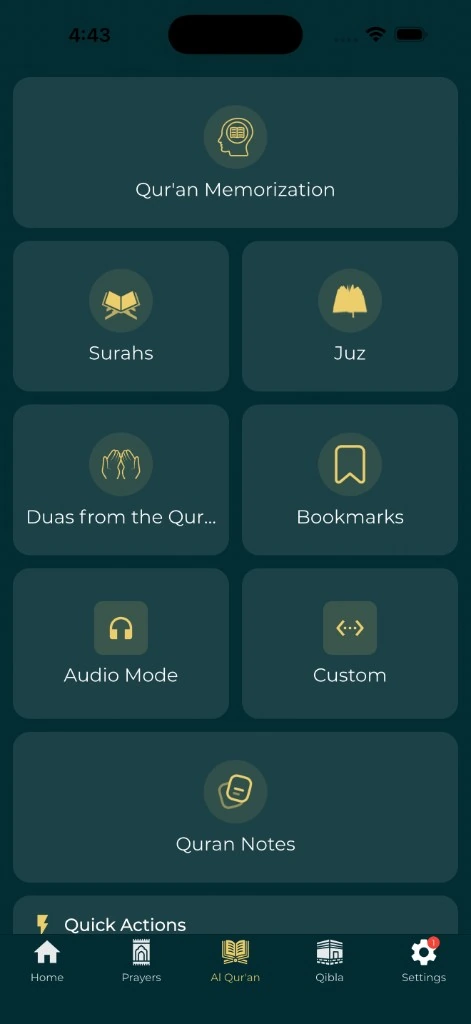
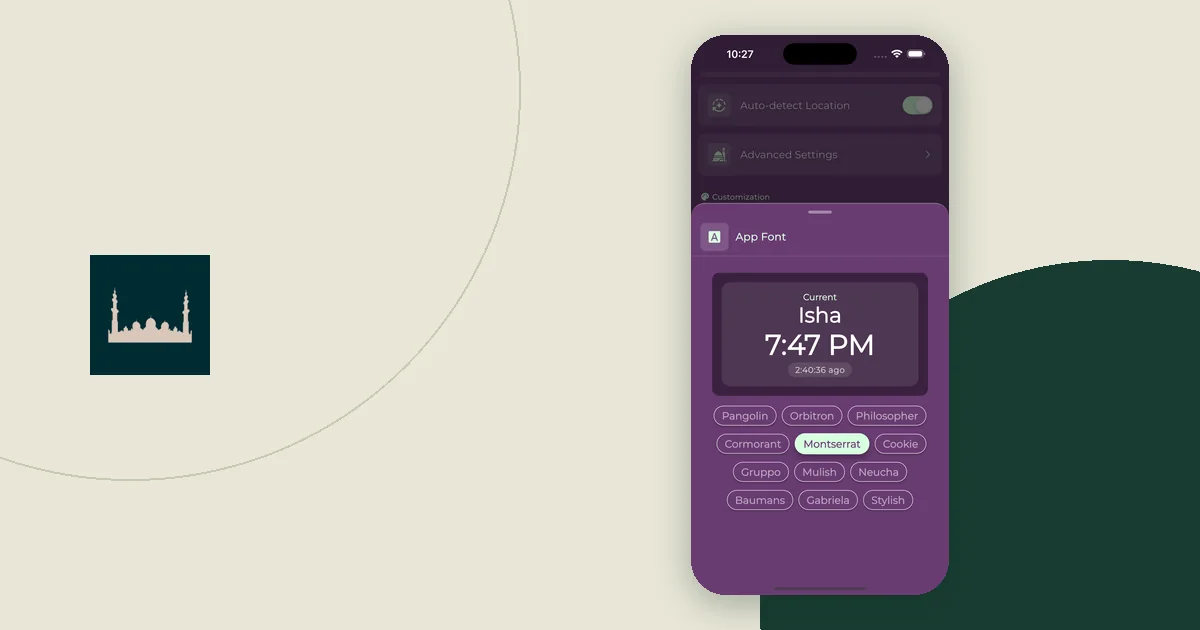
Everyday Muslim has general font and appearance settings, plus separate reading settings for features like the Quran and duas. The customization guide explains that "one global choice does not have to serve every purpose." In the current app, the Quran reader stores Arabic text size, translation size and transliteration size as separate settings, and you can choose fonts for Arabic and translation text.
After a change, read a full short passage. Check Arabic letters and marks, the translation, verse references and button labels. Notice if larger text pushes a control off the screen or hides part of a line. The Quran reading guide covers translations and bookmarks in more detail.
Then adjust the phone's text settings
Phone-wide settings change text across many apps at once. They are worth trying when the whole app, not one feature, feels small.
On iPhone, Apple's text size article gives two routes:
- Go to Settings > Display & Brightness > Text Size and drag the slider.
- For larger options, go to Settings > Accessibility > Display & Text Size > Larger Text.
Apple says the change applies to apps that support Dynamic Type. It also warns that very large text can make buttons and other controls hard to tap.
On Android, Google's text and display guide suggests:
- Open Settings, search for Font size and move the slider.
- Search for Display size to make everything on the screen bigger or smaller.
- Go to Accessibility > Display size and text to turn on Bold text.
Google states plainly that "the font size setting doesn't apply to some apps." So check the real screen instead of assuming the slider changed every part of it.
If you use a screen reader or magnification, keep it on during your check. Bigger text alone does not prove that a button's spoken name or focus order is right.
Check contrast where you actually use the phone
Try the layout in the places you normally read: indoors, beside a window and outside. W3C's contrast guidance says text, icons, buttons and color-coded information all need enough contrast. It also notes that good contrast helps in different lighting, such as bright sun and screen glare.
Ask these questions on your prayer screen and a reading screen:
- Can you read the prayer name and time without guessing?
- Do selected and unselected buttons look different?
- Can you tell a status from its text or symbol, not only its color?
- Does a wallpaper hide a label or part of a passage?
If a decorative wallpaper makes any answer "no," choose a plainer one. The same check applies to Home Screen widgets, which the widget arrangement guide covers.
Keep labels on the navigation you use most
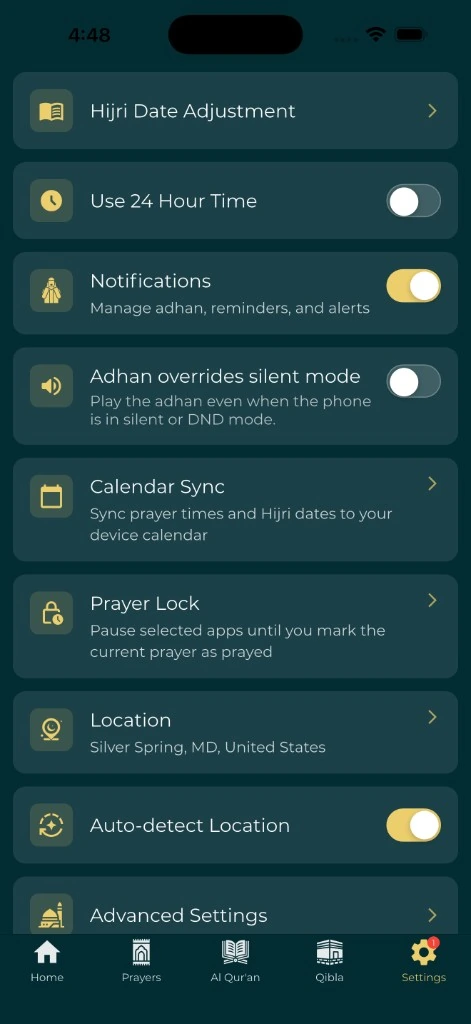
In Everyday Muslim, the Bottom Navigation setting offers several bar styles, including one called No Label. An icon-only bar takes less space. But if you pause to remember which icon opens the Quran, the labels are doing useful work. Keep them.
Then walk through your most common routes, from opening the app to the task and back:
| Route | What to check |
|---|---|
| Find today's prayer times | Labels and time format are clear |
| Read a longer passage | Text stays readable while scrolling |
| Open a bookmark | You know where it leads and how to return |
| Change a setting | The control name and saved result make sense |
Home layout controls also let you move the sections you use most closer to the top. The Quran bookmarks guide can help make a repeated reading route more specific.
Help someone else without guessing
If you are setting up a phone for a parent or relative, let them name the problem and test the fix. Their preferred font, language and navigation may differ from yours. Ask before changing their layout, and show them how to undo it.
For example, an older relative may be happy with their navigation but need larger Quran text. Changing every tab, color and icon at once could fix the wrong thing. Start with the reading screen they pointed to. A calmer phone setup for worship can help too, but readability still needs its own check on a tidy screen.
Report a barrier when settings are not enough
If no setting fixes the problem, send support a short, specific report. Include:
- Device model and operating-system version
- Everyday Muslim version
- The screen and the app language
- The text, display or accessibility settings you changed
- What you tried to do, what you expected and what happened
A line such as "the save button disappears after I set Larger Text to the top size on this screen" gives a developer something to reproduce. Crop any screenshot so it does not show private notes or worship records. Keep the setting that lets you carry on in the meantime, and check again after the next app update.