Privacy & technology
Arrange Prayer Widgets for a Quieter Home Screen
Pick one prayer widget for one question, add it on iPhone or Android, clear the space around it, and check its times, refresh and privacy.
Editorial writing date:
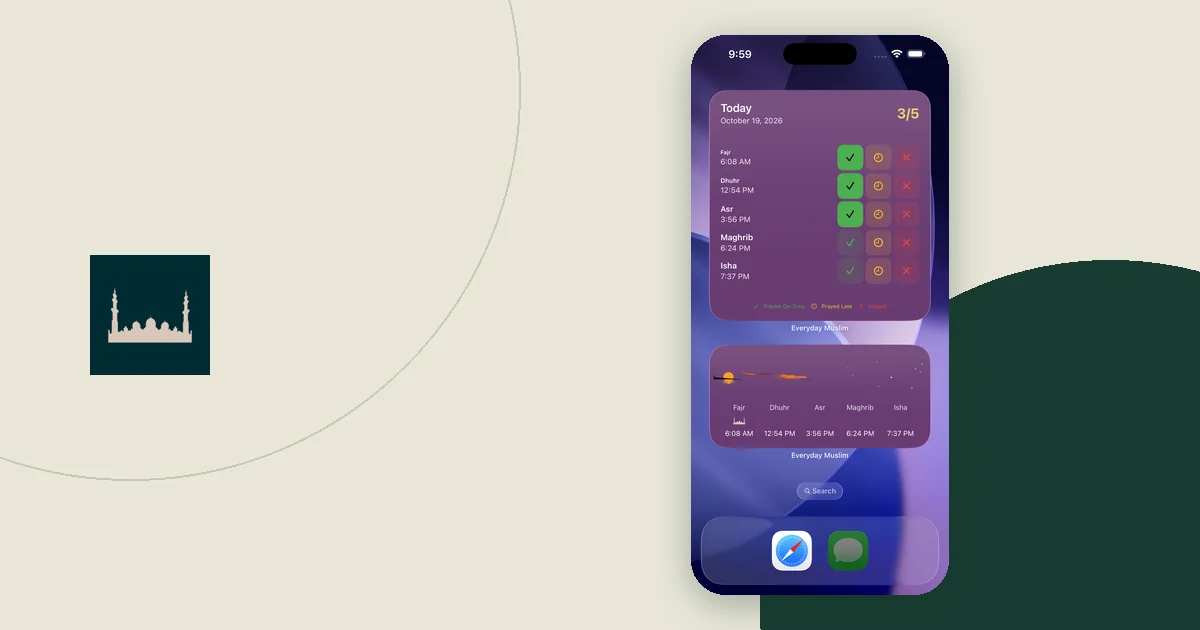
Pick one prayer widget for the question you most often unlock your phone to answer, such as "When is the next prayer?" Add it on your first Home Screen, move unrelated apps to another page, and then compare the widget with the full app. One clear widget is easier to read than several that compete for the same glance.
Key Takeaways
- Match the widget to one question: next prayer, today's timetable or your own prayer record.
- Add it with your phone's own widget picker; iPhone and Android use different steps.
- Move unrelated apps off the first page instead of deleting them.
- Widgets refresh on the system's schedule, so confirm times in the app after travel or a settings change.
- Treat a widget as a display. Test adhan reminders on their own.
Match the widget to one question
Think about the last few times you opened the app. Were you checking the next prayer, planning a day around all five times, or marking a prayer in your record? Each of those needs a different widget.
The Everyday Muslim prayer widgets guide lists these types:
| Your question | Widget type to try first | Note |
|---|---|---|
| "How long until the next prayer?" | Next prayer | Shows the prayer name, time and countdown |
| "What are today's five times?" | Timetable | Useful when you plan breaks for the whole day |
| "Have I recorded today's prayers?" | Tracker | Can show daily status, streaks and weekly progress |
| "Where did I stop reading?" | Quran or dua last-read | A shortcut back to your place |
You can mark prayers from Android tracker widgets and from the large iOS Daily Status widget on iOS 17 or later. The layouts you see depend on your installed app version and operating system, so check your own widget picker.
Add the widget on iPhone or Android
Open Everyday Muslim once before adding a widget and confirm your location and calculation settings. The prayer widgets guide suggests opening the app first if a newly installed widget has not received your settings.
On iPhone, Apple's widget guide gives these steps:
- Touch and hold a widget or an empty area until the apps jiggle.
- Tap Edit in the upper-left corner, then tap Add Widget.
- Search for Everyday Muslim, pick a widget and a size, then tap Add Widget.
- Tap Done.
For a supported Lock Screen widget on iOS 16 or later, touch and hold the Lock Screen, tap Customize, then tap Add Widgets.
On Android, Google's Home Screen guide gives these steps:
- Touch and hold an empty space on a Home Screen.
- Tap Widgets, then tap Everyday Muslim to see its widgets.
- Touch and hold the widget, drag it into place and lift your finger.
- To resize it, touch and hold the widget, then drag the dots on its sides. Dots appear only when the widget can be resized.
Google notes that some of these steps only work on Android 14 and up. Your launcher can use different wording. Android Lock Screen widgets depend on the device and launcher, and not every phone supports them.
Example: one quiet first page
Here is an illustration of one possible layout. It is not a standard to copy, and your screen size and widget sizes will change it.
- Top half: one medium timetable widget, so all five times are visible together.
- Below it: one row of four apps you use every day, such as Phone, Messages, Camera and Everyday Muslim.
- Dock: the apps you already keep there.
- Second page: news, shopping, games and other apps that tend to pull you away.
If a countdown matters more than the full day, swap the timetable for a small next-prayer widget. If you share your phone often, a timetable reveals less about you than a tracker widget with streaks.
Clear and check the space around the widget
Moving an app does not delete it. On iPhone, Apple's guide to moving apps and widgets says to touch and hold the Home Screen background, then drag an app to the right edge of the screen to reach another page. On Android, drag the app and slide it to another Home Screen. Google's Home Screen guide also explains that Remove takes an app off the Home Screen, while Uninstall takes it off the device.
Next, check the text. Read the smallest label on the widget, not just the large time. If a photo wallpaper makes the numbers hard to read, choose a plainer background. The customization guide explains that individual widget color or photo styles need iOS 17 or later.
Compare the widget with the full app
After setup, open the app and check the location, date, calculation method and Asr setting. Then compare the times with the widget. Repeat this after a journey, a clock change or any change to prayer settings.
A widget is not a live copy of the app. Apple's WidgetKit documentation says a widget extension "is not continually active, even if the widget is onscreen," and that iPhone spreads widget reloads across the day using a budget. On Android, Google's widget developer guide says the built-in periodic update cannot run more often than every 30 minutes, so apps also update widgets in other ways.
So, if a widget shows yesterday's date or an old countdown, open the app first. Then note exactly what looked stale: the date, the prayer name, the time or your record. A specific description helps support diagnose the problem. For a trip, use the travel time zone checklist to confirm the destination schedule.
Decide what other people can see
The Lock Screen is visible before anyone unlocks the phone. A tracker widget can show your daily status and streaks to whoever picks it up. Put a tracker widget on a page you see in private, and use a neutral timetable on the Lock Screen if that feels better.
Before sending a screenshot to support, crop out notifications and personal records.
Keep widgets and adhan reminders separate
A widget shows information when you look at it. An adhan notification is a separate system that alerts you. One working does not prove the other works.
Use the prayer notification QA checklist to test reminders on purpose. If you want a large clock and countdown on a desk, StandBy mode in Everyday Muslim is a full-screen display, and it does not replace notifications either.
Review the layout after a week
Use the setup during ordinary days, then ask:
- Did the widget answer your question without opening the app?
- Did the times match the app each time you checked?
- Did anything on the first page pull you away from the task?
- Is any personal record showing where you would rather it did not?
Keep what helped and remove what did not. For the wider screen and notification setup, see the low-distraction phone setup for worship.