Privacy & technology
Build a Low-Distraction Phone Setup for Quran and Worship
Plan one Quran or study session, clear the first screen, set up an iPhone Focus or Android Mode, consider optional Prayer Lock, and test calls and alerts.
Editorial writing date:
Plan the setup around one activity, such as reading a passage or reviewing a lesson. Put the tools for that activity on your first screen, move other apps to a later page, and choose a notification filter for the session. Then try it once on an ordinary day before you rely on it.
This guide uses a Quran reading or study session as its example. For the five daily prayers, the phone focus plan around prayer time covers prayer-time filters in detail. These are practical phone settings. They can cut the steps between unlocking the phone and starting your reading. They do not measure attention, sincerity or the quality of worship.
Key Takeaways
- Write down what the session is for before you change anything.
- A notification filter, an app timer and Prayer Lock solve different problems.
- On iPhone, a Focus filters alerts and Screen Time limits apps.
- On Android, Modes and Do Not Disturb filter alerts, and Digital Wellbeing limits apps with app timers or its own Focus mode.
- Keep needed calls, alarms and the route back to settings working.
- Change one control at a time, and keep only what fixes a problem you noticed.
Write down what the session is for
Describe the session in one line, for example: "Read one page of my bookmarked surah after Isha, about 20 minutes." A clear task tells you what should be visible when you unlock the phone and what can wait.
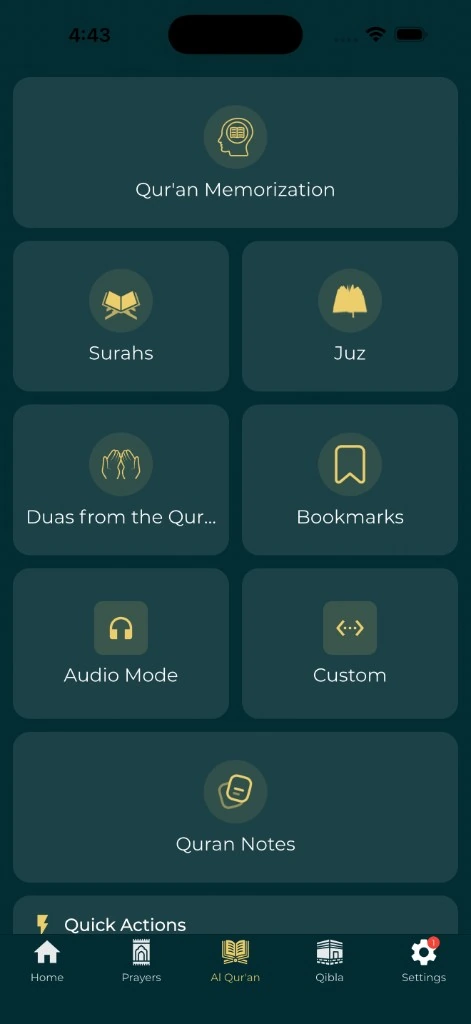
Look honestly at the route you follow now. If you usually glance at messages or a news app before opening the Quran, the first screen may be the real problem. The Quran bookmarks and notes guide helps you set a clear starting point, so the app opens where you meant to begin.
Example: an evening Quran session
This is an illustration, not a tested recipe. The iPhone and Android steps below follow Apple's iOS 27 and iOS 26 guides and Google's Android help pages as published on 5 November 2026; menus vary by device maker and version.
| Part of the setup | Choice in this illustration | Why |
|---|---|---|
| First Home Screen | Everyday Muslim, Phone, Messages and one prayer widget | The reading app is one tap away |
| Second page | Social, video and shopping apps | Still installed, just out of the first glance |
| Notification filter | A "Quran" Focus (iPhone) or custom Mode (Android) | Silences most apps for the session |
| Allowed people | Close family and anyone who may need you urgently | Important calls still reach you |
| Prayer Lock | Off for this session, on for protected prayers | Lock is tied to prayer times, not reading |
| End point | Turn the Focus or Mode off after reading | You know how to leave the setup |
Clear the first screen
Moving an app does not uninstall it. On iPhone, touch and hold the Home Screen background until items jiggle, then drag an app to the right edge to put it on another page, as Apple's guide to moving apps and widgets describes. On Android, touch and drag the app to another Home Screen. Google's Home Screen guide notes that Remove takes an app off the Home Screen, while Uninstall takes it off the phone.
If you add a widget, keep it to one that serves the session. The prayer widget guide covers choosing and placing one.
Match each interruption to a control
Different problems need different tools. In this guide, Focus means Apple's alert filter on iPhone, Modes means Android's alert filter, and Digital Wellbeing Focus mode is a separate Android tool that pauses chosen apps.
| What you notice | Control to try |
|---|---|
| Banners from other apps break your reading | iPhone: a Focus. Android: Modes or Do Not Disturb |
| You keep opening one app out of habit | iPhone: Screen Time. Android: a Digital Wellbeing app timer or Focus mode |
| You scroll past the start of a prayer | Optional Prayer Lock in Everyday Muslim |
| You can't find where you stopped | A bookmark and a clearer first screen |
| Needed calls are being silenced | The allowed people list in your Focus or Mode |
On iPhone
Apple's Focus guide gives this route:
- Open Settings, tap Focus, then tap a Focus such as Personal, or create a custom one.
- Tap People to choose who can reach you, and Apps to choose which apps can notify you.
- Under the Lock Screen or Home Screen options, pick a customized page to show while the Focus is on.
- Tap Add Schedule if you want it to turn on at a set time.
Linking a Home Screen page to the Focus lets the quiet layout appear only during the session.
A Focus does not stop you opening an app. Screen Time can, and its labels depend on your iOS version. In iOS 27, Apple's Screen Time Schedules and Time Allowances guide gives these routes:
- For a daily cap, go to Settings, tap Screen Time, then tap Time Allowances and adjust a category such as Social Media.
- For set hours, tap Screen Time, tap Screen Time Schedule, turn on Schedule, then tap Add Schedule and choose the days and time window.
- Tap Always Allowed to keep needed people and apps available.
On iOS 26, the earlier version of Apple's guide calls these App Limits and Downtime, and notes that limits can be ignored unless Block at Downtime is on.
On Android
Google's Modes and Do Not Disturb guide starts from Settings, then Modes, where you can use Do Not Disturb or create your own mode for a reading session.
For a habit app, Android's Digital Wellbeing guide describes two tools. With App timers, Google says that when you run out of time, "the app closes and its icon dims," and timers reset at midnight. Digital Wellbeing Focus mode pauses the apps you choose, and you won't get their notifications while it is on. A daily timer or allowance limits total use; it does not define one reading session.
Use optional Prayer Lock with a clear setup
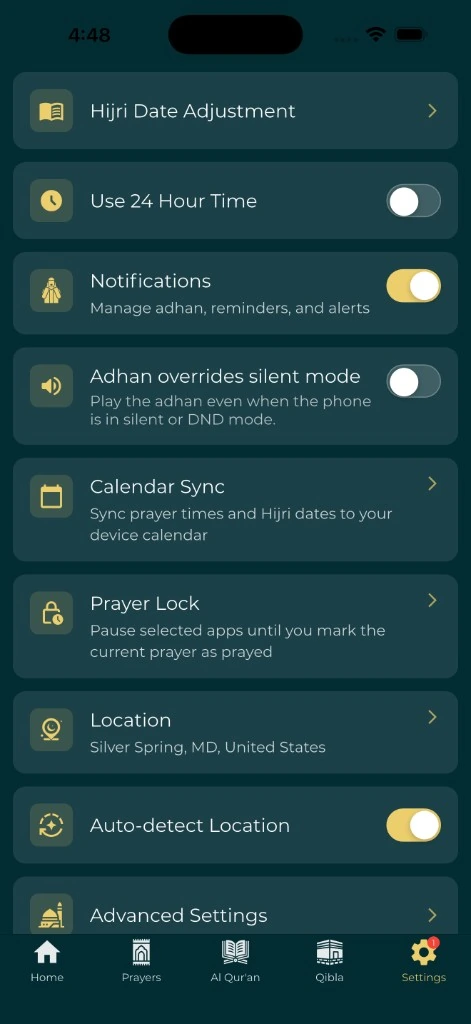
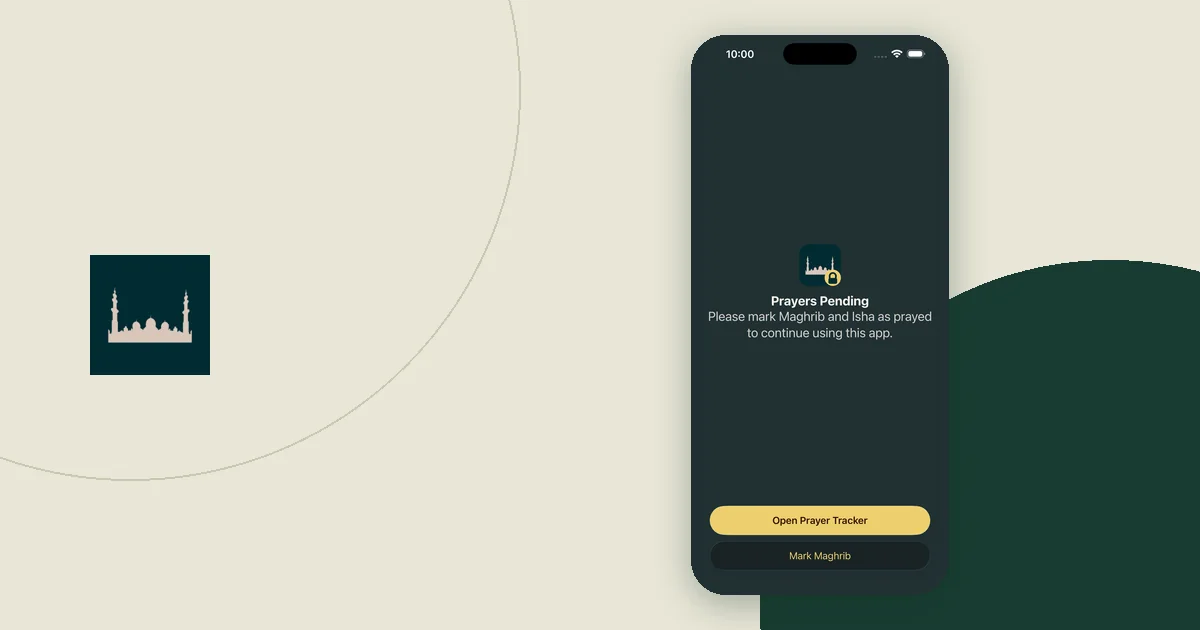
The Prayer Lock guide describes an optional feature that pauses apps you select when a protected prayer begins. Access returns after you record that prayer as complete. On iPhone it uses Apple's Screen Time integration. On Android it uses an optional Accessibility service. Availability depends on your device and app version.
Before you turn it on, read the permission explanation. Choose the apps and protected prayers on purpose, and check each lock time. Learn how to switch the feature off in the app and how to revoke the device permission. The app relies on your record; it does not check whether you prayed.
Test access before you rely on it
Try the setup when you have time to adjust it. Check each item:
- A call from an allowed contact rings through.
- An alarm you need still sounds.
- Your adhan reminder still appears while the filter is on.
- You can open the reading app and your bookmark straight away.
- You know how to end the Focus or Mode, and how to turn off Prayer Lock.
Do not assume a contact, alarm or adhan reminder will pass through every mode. The prayer notification QA checklist gives you a way to record what you expected and what happened.
Keep a short note of every setting you changed, so you know where to start if an alert stops arriving.
Keep the screen comfortable as well as quiet
A nearly empty screen can still be hard to use if the text is small or the only button is an unfamiliar icon. Check the readability and navigation setup alongside your filters.
A learner may need the Arabic text, a translation and a lesson note during practice. Removing every support tool would make that session harder. Keep what helps the task, and move what keeps sending you elsewhere.
Review what happened after a few sessions
Ask yourself a few direct questions. Did a specific notification break your reading? Was the passage hard to find? Did a filter or lock block something you needed? Make one small change based on the answer.
Avoid turning the setup into another score to keep. If a tidy first screen and a simple Focus or Mode are enough, stop there. If Prayer Lock helps, keep its permissions and exit route easy to understand.