Prayer & daily life
Build Prayer Reminders You Will Actually Notice
Make prayer reminders useful: give each one a next action, check app and phone settings, confirm delivery, and remove duplicate reminders across apps.
Editorial writing date:
A useful prayer reminder reaches you in the conditions you normally use your phone, and it tells you what to do next. Start by checking the timetable, choose a suitable sound, and test it. If it fails, find out whether the problem is delivery, attention, or the practical arrangement that follows.
Three words are easy to mix up. A reminder is the prompt you set up for a prayer, in a prayer app or a calendar. A notification is what the phone delivers when that reminder fires: a banner, a sound or a vibration. An alarm is a wake-up alarm in the phone's Clock app. Each needs its own check.
Adding more reminders can leave the same problem unsolved. A notification cannot arrange a work handover, find a suitable place, or correct the city in your timetable. Give it a narrow job inside a wider daily salah plan.
Key Takeaways
- Give each reminder a clear next action, such as starting your preparation.
- Check the phone's notification settings as well as the settings inside the prayer app.
- Test with the screen locked and your usual phone mode on, then confirm delivery in Notification Center (iPhone) or notification history (Android).
- Keep one reminder per prayer and turn off duplicates from other apps.
Decide what the reminder should prompt
Write down the next action before choosing a sound. You might need to leave your desk, check a room is free, or start getting ready at home. A reminder that just says "Prayer" may be enough, but it can also leave a decision open at exactly the wrong moment.
If your app supports custom reminder text, use a short label that makes sense at a glance. If it does not, keep the action in a calendar note or somewhere else you already look. Do not assume every prayer app can create early reminders or custom labels.
Base the timing on the correct local timetable and the settings you follow. For an early preparation reminder, confirm that the app supports one and understand what the offset means. A reminder is a prompt; it is not a religious judgment about when your own prayer is valid.
Check the app and the operating system
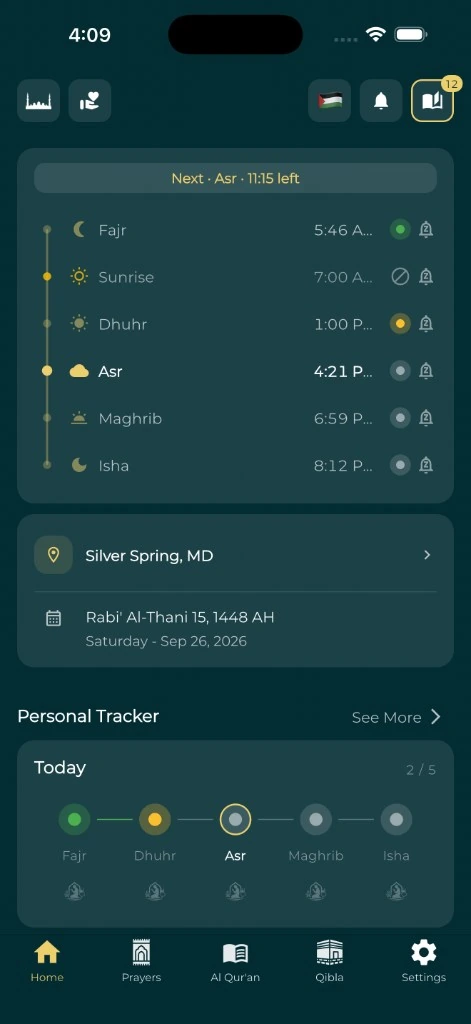
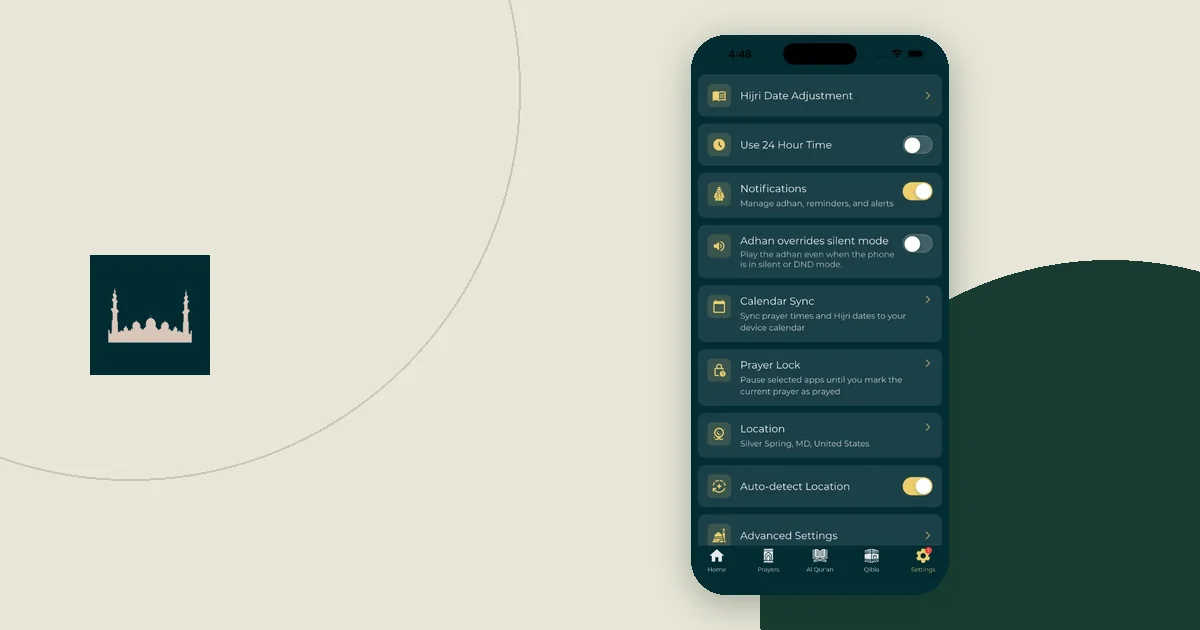
Look inside the app first. Confirm the location, date, selected prayers, and the sound for each prayer. In Everyday Muslim, Settings also has an Adhan overrides silent mode switch, which the app says uses alarms to play audible adhan reminders while the phone is on silent. If you turn it on, test it with silent mode on. Then open the phone's settings for that app. These are two separate checks.
Apple's iPhone notification guide describes where notifications appear and the choice between immediate and scheduled delivery. If you expect a notification at a set moment, make sure it is not being held for a later summary. Check the Focus you normally use as well: each Focus lets you allow or silence notifications from specific apps.
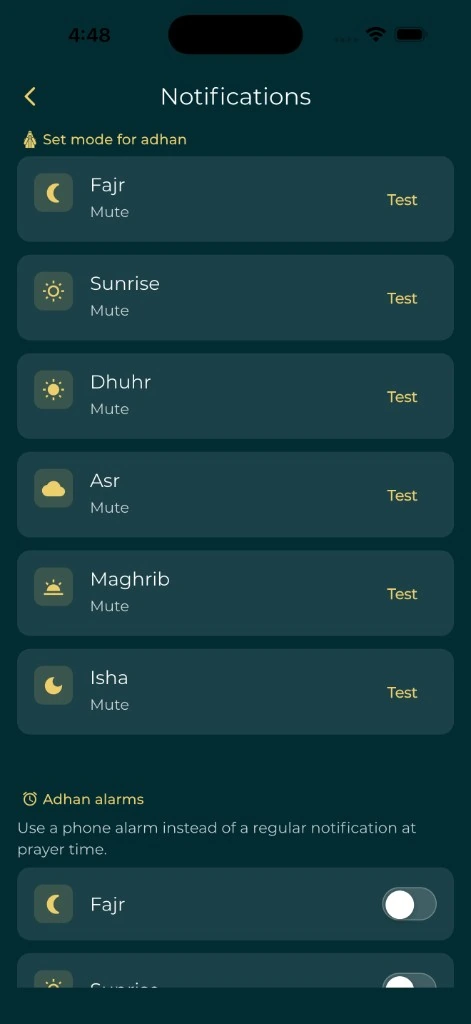
Google's Android notification guide explains app notification controls and notes that settings vary by device. Look at each notification category, not just the overall app permission. A silent category is easy to miss if you only check that the app is allowed to notify.
Menu names differ across system versions and phone makers, so use the settings on your actual phone. Follow the adhan notification help page for the Everyday Muslim side, then your phone's own help pages for the system side.
Match the reminder to the situation
Choose a sound or vibration you will notice without causing an unsuitable interruption. A private room, an open office and a train call for different choices. If you plan to rely on vibration, test it with the phone in a bag or pocket.
If you share a space, agree a sound arrangement with the people around you. Think about what shows in notification previews on the Lock Screen too. A helpful label does not need to reveal a private reflection, a personal record or a group conversation.
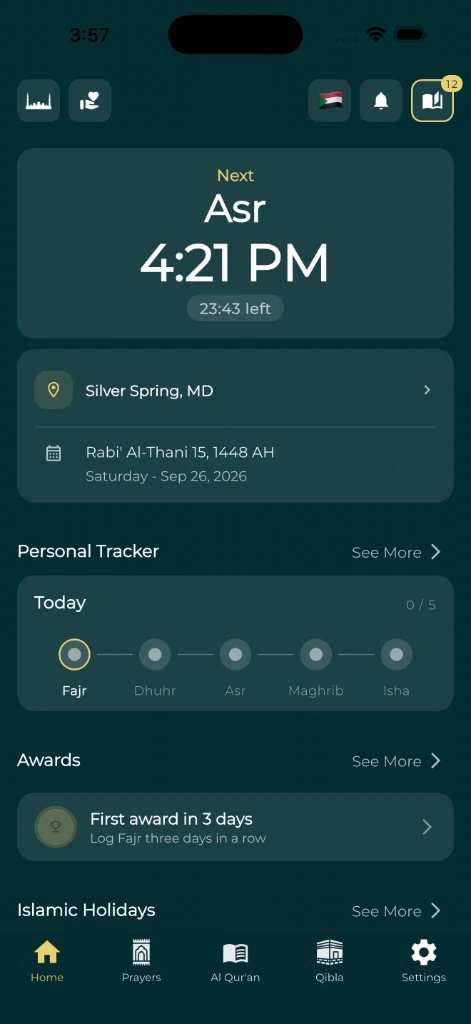
Keep a visual reference where you normally look. A prayer widget can show the next prayer, but seeing a widget does not prove a notification will arrive. Showing information and delivering a notification are different jobs.
Run a small test you can interpret
Test one setup at a time so you can understand the result. Use a test or preview option if the app has one, or watch the next scheduled reminder. Do not change a real prayer timetable just to create a test.
- Write down the app, the expected time, and the phone mode (for example, Work Focus on).
- Lock the screen and put the phone where you would normally keep it.
- When the time comes, note whether the notification appeared, made a sound, or vibrated.
- Note whether you noticed it without watching the phone.
- Check whether the next action was practical where you were.
Then confirm what the phone actually delivered:
- On iPhone, open Notification Center: swipe up from the middle of the Lock Screen, or swipe down from the top-left corner on other screens, then scroll up for older notifications. Apple's guide to viewing notifications explains this. If you cleared the notification, it will no longer be there.
- On Android, use notification history where your phone has it. Google's notification guide says "some devices may not have notification history". If yours does not, record what you saw and heard rather than treating the missing history as proof the notification failed.
A good result applies to those conditions. Repeat the check after a real change, such as a new phone or a new Focus setup. The prayer notification QA checklist gives a more detailed log for repeated failures.
Classify the failure before changing settings
Separate delivery problems from the decisions that follow. That makes the fix more precise.
| What happened | What to investigate next |
|---|---|
| No notification appeared, and none in Notification Center or history | App schedule, phone permission, delivery mode, and device guidance. |
| It appeared in Notification Center but made no sound | The prayer's sound in the app, the Focus or Do Not Disturb setting, and the notification category. |
| It made a sound but you did not notice it | Where the phone was, and the sound or vibration you chose. |
| You noticed it but could not step away | Work cover, a suitable space, or another practical arrangement. |
| Several apps notified at different times | Location and calculation settings in each app, then keep only one reminder source. |
Worked example: a Dhuhr reminder at the office
This is an illustration, not a record of a real test. The time comes from this site's prayer-time calculator for Birmingham, UK, on Monday 16 November 2026, using the Moonsighting Committee method. Dhuhr in that example is at 11:57 AM.
The label. An office worker sets the Dhuhr reminder and gives it one job. In their calendar, a matching note reads: "Dhuhr: save work, check the quiet room is free."
The test. On the day, they turn on their usual Work Focus, lock the phone and leave it in a bag by the desk. At 11:57 they hear nothing. Afterwards they open Notification Center, and the Dhuhr notification is there.
The fix. That matches the second row of the table: it arrived but made no sound. The likely cause is the Focus, so they open Settings > Focus > Work > Apps and add the prayer app under Allow Notifications From. They repeat the test the next day under the same conditions before relying on it.
The point of the example is the order: label, test, look up the result in the table, change one thing, test again.
Remove duplicate reminders across apps
Duplicates cause their own confusion. If a prayer app, a second prayer app and a calendar all remind you about Dhuhr, they may fire at different times, especially if their locations or calculation settings differ. Pick one source for each prayer and turn off the rest.
- On iPhone, swipe left on a notification, tap Options, then Turn Off. Apple's guide to viewing and responding to notifications describes this, along with muting an app for an hour or a day.
- On Android, Google says you can "turn off all notifications for a listed app or choose from specific categories" in the notification settings.
Delete calendar events that repeat an old prayer time as well. Each remaining reminder should have a known source and a known purpose.
Keep wake-up alarms separate
If you need to wake up, check the alarm you will use as well as the prayer app. Google's Clock guidance covers alarm repeat days, sound, vibration and troubleshooting. An alarm and a prayer notification need their own checks.
For Fajr, use the evening preparation plan to check the coming morning's timetable and your alarm. Remove test reminders when you finish testing. This week, pick one prayer, give its reminder a label with a next action, and run the five-step test above.