Prayer & daily life
A Practical Evening Plan for Waking Up for Fajr
Prepare for Fajr the evening before with a current timetable, a checked wake-up alarm, a ready prayer space, and a simple way to review what went wrong.
Editorial writing date:
Prepare for Fajr before you put your phone down for the night. Check the next morning's local timetable, choose and test your wake-up alarm, and leave what you need ready. That takes practical decisions out of the moment you are trying to wake up.
The Quran describes prayer in relation to appointed times in An-Nisa 4:103. So the evening plan should use a current timetable, not a wake-up time copied from an old routine. The steps below are practical preparation. Questions about missed prayers or personal exceptions belong with a qualified teacher.
Key Takeaways
- Check tomorrow's Fajr time, and the date and location the timetable is using.
- Use the Clock app for waking up; prayer app notifications follow different rules in silent mode, Focus and battery saver.
- Test the alarm you will rely on, including its sound and repeat days.
- Prepare your space before bed, then fix one specific obstacle if the plan fails.
Check tomorrow's timetable, date and location
Open the prayer timetable and check that it shows the right place and the coming morning. A screenshot is only useful if you know which date and location it shows.
Illustration: this site's prayer-time calculator, set to London with the Moonsighting Committee method, gives Fajr at 4:13 AM on Saturday 27 March 2027 and 5:11 AM on Sunday 28 March 2027. UK clocks go forward on 28 March 2027, so the clock time jumps by almost an hour overnight. An alarm copied from Saturday would be wrong by Sunday. The guide to checking prayer times when the clocks change covers this in more detail.
If you will pray at a mosque, check its congregation times directly. Keep your own wake-up time separate from that schedule. You may need time to get ready and travel, and no timetable knows how long that takes in your home.
When you are away, check the location and time zone before setting the alarm. A familiar screen can hide the fact that you are looking at a saved city. The prayer travel time zone checklist covers that problem.
Choose a wake-up time that leaves enough room for your own preparation. No fixed gap suits everyone. Your circumstances, the timetable you follow and any congregation plans should guide the choice.
Set the wake-up alarm deliberately
Open the alarm itself instead of trusting the icon at the top of the screen. Check the time, that it is switched on, the selected days and the sound.
On iPhone, the Clock app lets you name an alarm, repeat it and pick its sound. Apple's alarm setup instructions also explain how to change the alarm volume. A label such as "Fajr: get up and make wudu" makes the alarm's purpose clear.
Google's Clock instructions for Android cover alarm time, repeat days, vibration and troubleshooting. Phones and alarm apps differ, so check the guidance for the one you actually use.
Set a test alarm a few minutes ahead while you are awake. Let it ring with the screen locked and listen. Then delete the test and check the real morning alarm again. A good test shows the alarm works tonight with these settings. It cannot promise that you will wake up.
How silent mode, Focus and battery saver treat alarms and notifications
A Clock alarm and a prayer app notification are different things, and phone settings treat them differently. Making an adhan notification audible does not create a wake-up alarm. A working Clock test does not prove the prayer app is set up either.
Here is what the official help pages say:
| Phone setting | Clock alarm | Prayer app notification |
|---|---|---|
| iPhone silent mode or Do Not Disturb | Apple says Do Not Disturb, the Ring/Silent switch and Silent mode "don't affect the alarm sound". | Can be silenced. Check the app's notification settings. |
| iPhone Focus (for example Sleep) | Alarm still rings, as above. | Each Focus lets you allow or silence specific apps. Apple notes that iPhone shows notifications as they arrive unless they are silenced with a Focus. |
| iPhone Low Power Mode | Apple's alarm page does not list it as a factor. If you use it overnight, run your test with it on. | Apple says Low Power Mode reduces background activity and turns off Background App Refresh. Open the prayer app in the evening to confirm it shows tomorrow's times. |
| Android Do Not Disturb | Google says Do Not Disturb can block or allow alarms. Check that alarms are allowed. | You choose which apps can notify you under Notification filters. Add the prayer app if you want it to come through. |
| Android Battery Saver (Pixel) | Google says the battery savers never turn off the Clock app. | Google's Pixel battery page says "Low priority notifications may be delayed." With Extreme Battery Saver, most apps pause and paused apps send no notifications, unless you choose the app to stay active. |
Menu names vary between phone makers and system versions. If your phone differs, check its own help pages. For the app side, follow the adhan notification help page.
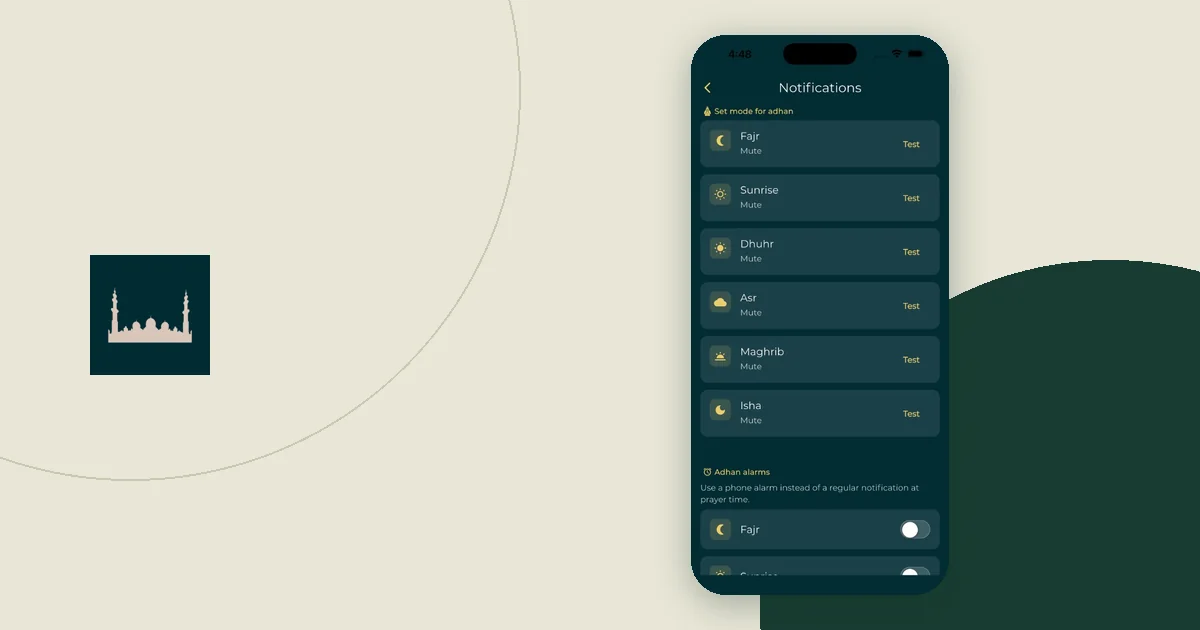
Some prayer apps can also deliver the adhan as an alarm. In Everyday Muslim, the Adhan alarms section of the Adhan Notifications screen lets you choose alarm delivery for individual prayers. If you turn it on for Fajr, give it the same locked-screen test, and keep the Clock alarm as your main wake-up.
The simplest setup is to let the Clock alarm wake you and treat any adhan notification as an extra. If you use several reminders, give each a job: one prompts the evening check, another wakes you. Delete old alarms whose names and repeat days you no longer recognize. The guide to prayer reminders you will notice walks through a fuller test.
Leave the morning ready to begin
Set up your space before bed so you are not hunting for things in the dark. Lay out what you usually need, clear the route, and decide where the phone will sit.
If you share a room, agree the alarm arrangement with the other person. Put the alarm somewhere you can reach safely. Avoid an awkward or hazardous spot just to make yourself get up.
A short evening checklist helps:
| Check | What you want to know before bed |
|---|---|
| Timetable | Is it showing the right date and location? |
| Wake-up alarm | Is it on for tomorrow? |
| Sound | Have I heard this alarm ring in a test? |
| Phone | Is it charging, or charged enough for the night? |
| Phone modes | Will Focus, Do Not Disturb or battery saver be on overnight? |
| Space | Can I start without searching for things? |
| Household | Does anyone else need to know the plan? |
Keep the checklist where you will see it. Its job is to end the evening's preparation, not to start another long phone session.
Plan the evening backwards from the alarm
Work backwards from the alarm time. Decide when you will put the phone on charge, when lights go out, and what has to be done before then. Choose a lights-out time that leaves the amount of sleep you know you need.
Then look at what usually pushes the evening later: work, travel, chores, or open-ended scrolling. Pick one thing to move earlier, such as laying out clothes after dinner or finishing the dishes before a call. Pick one thing that can wait until tomorrow. An alarm cannot make up for a night that runs late, so protect the time for rest in the plan itself.
If your shifts change, one weekday alarm may not match your real week. Review the next morning after every rota change, including days off and travel days. The changing-shift salah guide helps keep the work rota and the prayer timetable apart.
Review the failure you can identify
If the morning does not go to plan, write down what happened. Did the alarm not sound? Was it set for another day? Did a Focus or battery setting silence a notification? Did you switch it off and fall back asleep? Was the timetable set to the wrong place?
Fix that one issue before adding another alarm. Questions about what to do after a missed prayer should go to a qualified teacher. Then, the next evening, run the same four checks:
- Check tomorrow's timetable, including the date and location.
- Check the alarm is on, set for the right day, and has a sound you have heard.
- Prepare your space and the things you need.
- Put the phone on charge and leave it there.