Prayer & daily life
Check Your Prayer Times When the Clocks Change
Check your phone's time zone, prayer schedule and reminders when the clocks change, with iPhone and Android steps and a before-and-after London example.
Editorial writing date:
When your local clocks change, check three layers in order: the phone's date and time zone, the prayer app's place and date, and then its reminders. Keep the checks separate. A correct phone clock does not prove the app is using the right city. A correct schedule does not prove a reminder will arrive on time.
Do this check before you rely on the first reminder after the change. Keep a current local timetable to hand while you sort out any mismatch.
Key Takeaways
- Confirm the date your area actually changes its clocks. Neighboring regions may differ.
- Expect every prayer to show about one hour earlier or later on the clock. The Sun has not moved.
- Check the named time zone on the phone before touching any prayer setting.
- Test the reminder separately, and remove any old manual offset so you do not correct twice.
Confirm the local change first
Use an official notice for the place you are in. In the UK, for example, GOV.UK lists the clock-change dates: in 2026 the clocks went forward on 29 March and back on 25 October, and in 2027 they go forward on 28 March and back on 31 October. Do not assume a neighboring country, a relative overseas or your former home follows the same dates.
NIST's local time explanation describes daylight saving time as a change to the civil clock, and notes exceptions within the United States. For a prayer app, the lesson is simple. A clock change moves the numbers on your clock. It does not move the Sun.
So you are not trying to keep prayer times at last week's values. You are checking that the schedule is shown on the right clock for its date and place.
If the problem began after crossing a border, also use the travel time-zone checklist. A journey can bring a wrong place and a wrong time zone at the same time.
Worked example: London across the October clock change
Illustration only, not a timetable to follow. We used this site's prayer-time engine (Adhan 4.4.6) for London (51.5074° N, 0.1278° W, Europe/London zone), with the Moonsighting Committee method and the standard Asr rule. Saturday 24 October 2026 was the last full day of British Summer Time. The clocks went back at 2 AM on Sunday 25 October.
| Prayer | Sat 24 Oct (BST) | Sun 25 Oct (GMT) | Change on the clock |
|---|---|---|---|
| Fajr | 6:04 AM | 5:05 AM | 59 min earlier |
| Sunrise | 7:40 AM | 6:42 AM | 58 min earlier |
| Dhuhr | 12:50 PM | 11:50 AM | 60 min earlier |
| Asr | 3:17 PM | 2:15 PM | 62 min earlier |
| Maghrib | 5:52 PM | 4:50 PM | 62 min earlier |
| Isha | 7:13 PM | 6:12 PM | 61 min earlier |
Every row moved by about one hour. The extra minute or two either way is the normal day-to-day drift of the season. That is what a healthy clock change looks like.
Now picture two faulty results. If Sunday's times still show Saturday's values, the app may be stuck on an old schedule or an old manual offset. If Sunday's times jumped two hours, a correction has probably been applied twice.
Which layer is wrong? A quick self-check
Answer these in order and stop at the first "no".
- Does the phone show the right local time and date? If not, fix the phone first.
- Does the phone show the right time zone? Look for a named zone or city, not just a time.
- Does the app show the place you are in, and today's date? If not, fix the app's location or date.
- Did every prayer move by about one hour, as in the example above? If not, look for a leftover manual offset.
- Does the reminder arrive at the displayed time, or at your chosen lead time? If not, the problem is the reminder, not the schedule.
| What you observe | What to inspect next |
|---|---|
| Device clock is wrong | Device date, time and time-zone controls |
| Clock is right; schedule is wrong | App place, date, time zone and calculation settings |
| Schedule is right; reminder is unexpected | Reminder lead time, sound and delivery settings |
| An old screenshot differs | The screenshot's date and settings |
Check the phone's clock and time zone
On an iPhone, Apple's guide to changing the date and time points to Settings, then General, then Date & Time. Apple says the time zone is set automatically, but you can set it by hand if Location Services is off or you have no service. The current guide names the switches Set Time Zone Automatically and Set Time Automatically; older iOS versions may label them differently.
On Android, Google's Android Help describes separate controls for automatic date and time and automatic time zone, found through the Clock app's settings. It notes that only some devices can set the time zone automatically, and that with "Use location" turned off, the device location is not used to detect it. Labels vary by device, so follow the help for your own phone.
Keep the operating system up to date. IANA explains that time-zone data changes when governments change boundaries, offsets or daylight-saving rules, and that most users get those updates through their software vendor.
If an employer or school manages your phone and the time controls are locked, ask the administrator. Do not hide the clock problem with a prayer-specific offset.
Check what the prayer app is calculating
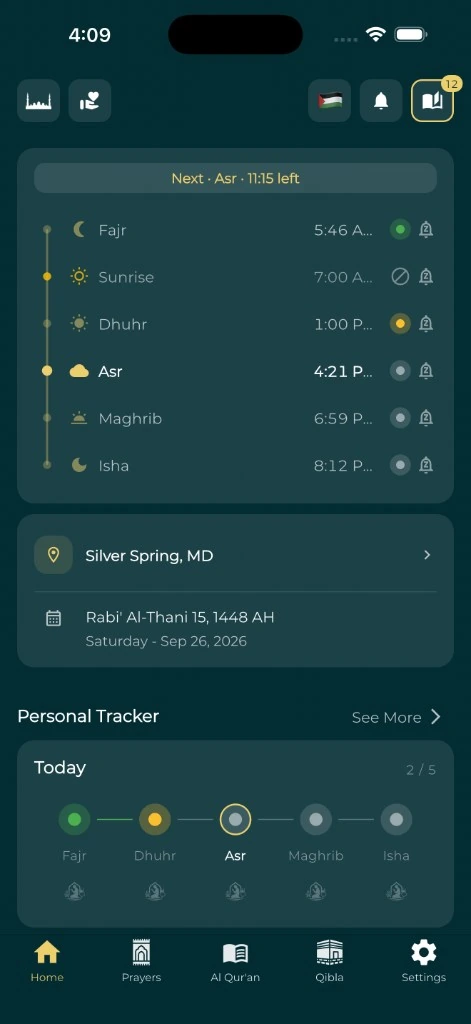
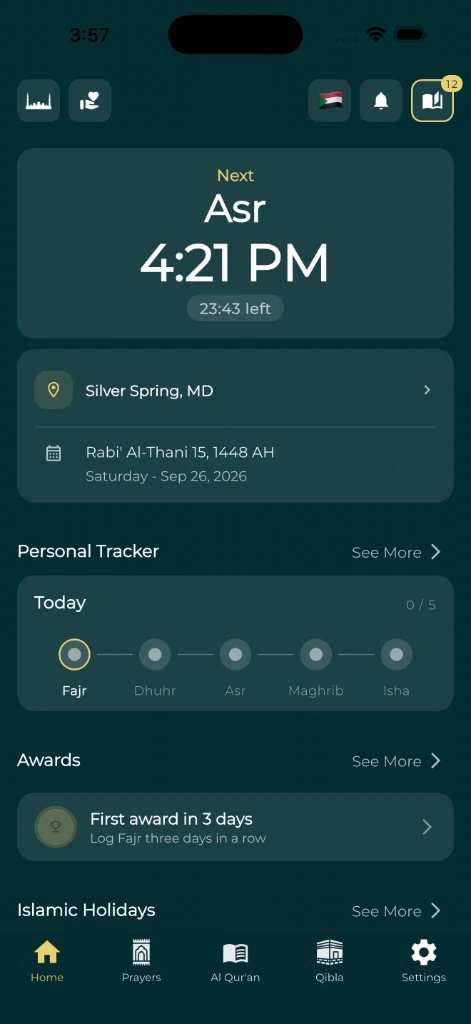
Open the full prayer schedule and look at its own location and date. A correct phone clock cannot fix a schedule saved for another city or opened on a previous day.
The Adhan library's README explains why both layers matter. It calculates prayer times as exact moments and advises formatting them with a specific time-zone name, warning developers never to assume the device's zone matches the location. In plain terms: the place sets the Sun's timing, and the time zone sets how that moment appears on your clock.
Use the online prayer-time tool to compare a matching location and date. It handles daylight-saving changes through the selected time zone, as in the London example. Keep the calculation method and Asr setting fixed while you compare. If you change those too, you will not know whether the clock was the cause. If only Fajr, Isha or Asr disagree with another source, the gap is probably a calculation setting, not the clock change; see why two prayer apps can show different times.
Test the reminder as its own layer
A displayed prayer time is the schedule. A sound, banner or vibration is a reminder about that schedule. Write down which one is wrong.
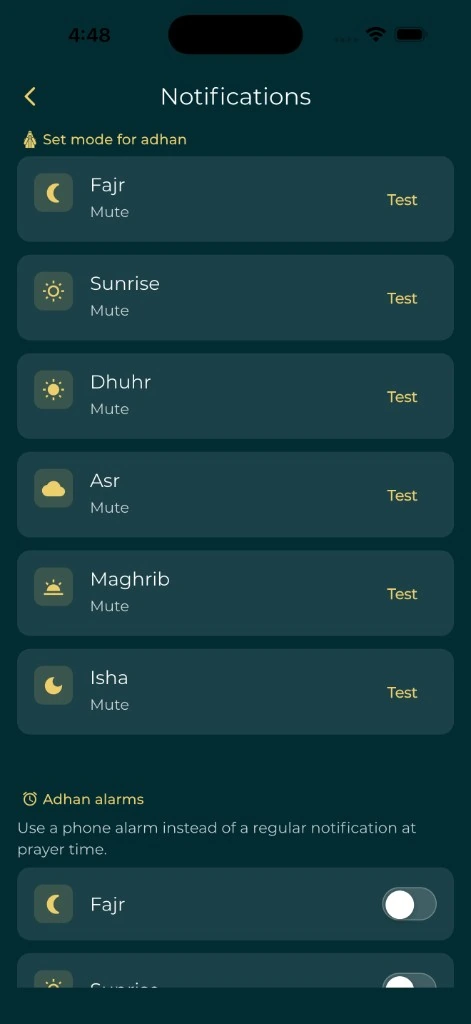
Follow the app's own test or troubleshooting steps. For Everyday Muslim, the adhan notification help page covers iPhone and Android notification checks. The prayer-notification QA checklist gives you a simple way to record what you expected and what happened.
Do not change the phone's clock on purpose to fake a clock change while you rely on it. That adds another variable and can upset other appointments.
Avoid a double correction
Imagine someone added a one-hour manual adjustment when their phone failed to update. Later the phone's time is fixed, but the adjustment stays. Now the app is wrong by an hour in the other direction.
Prevent this by writing down each change before you make it: the original value, the reason and the result. If a change did not solve the problem, undo it before you try the next one.
Once the schedule and reminder both check out, keep a short dated note with your city and method. For a problem that will not go away, contact the app's support team with that note, the device and app versions, and the expected and observed times. You do not need to send your private worship records.