Privacy & technology
Create a Phone Focus Plan Around Prayer Time
Plan a prayer-time phone focus routine on iPhone or Android: silence or pause the right apps, keep key contacts reachable and test the whole setup.
Editorial writing date:
A phone focus plan for prayer answers three questions. Which alerts should stay quiet? Which apps, if any, should pause? How will the quiet period start and end? Write the answers down, set them up on your phone, then test them before the next prayer.
Start with the smallest setup that fixes the distraction you actually have. For some people that means putting the phone on a shelf. For others it means a Focus (iPhone) or Mode (Android), an app pause, or an optional prayer-based app lock.
Key Takeaways
- Silencing notifications and pausing apps are different controls.
- Keep family contacts, your prayer reminder and any tools you need reachable.
- Phone schedules use fixed clock times, while prayer times move through the year.
- Test the start, middle and end of the plan, then change one thing at a time.
Name the distraction first
Think about what happens at prayer time. You might hear the reminder but keep scrolling. A new message might pull you into a conversation. A work app might keep you busy past the start of the prayer. Each of these needs a different fix.
If the problem is that the reminder never reaches you, fix that first. The notification QA checklist walks through it. A Focus (iPhone) or Mode (Android) cannot repair a reminder that is silent or set for the wrong place.
Then add a physical step. "Finish the sentence, put the phone on the shelf, go to wudu" is a plan. A settings screen on its own is not.
Choose between silencing and pausing
There are two kinds of control, and they solve different problems:
| Control | What it does | iPhone | Android |
|---|---|---|---|
| Silence alerts | Fewer notifications reach you | Focus | Modes, including Do Not Disturb |
| Pause apps | Selected apps cannot be used for a while | Screen Time: Time Allowances or a Screen Time Schedule (iOS 27), App Limits or Downtime (earlier iOS); or optional Prayer Lock | Digital Wellbeing Focus mode, or optional Prayer Lock |
On iPhone, Apple's Focus setup guide says to open Settings, tap Focus, then choose a Focus such as Do Not Disturb or Personal, or create a custom one. Tap People and Apps to choose who can still notify you. You can also link a Focus to a quieter Home Screen page "to help limit distractions." A Focus filters alerts; it does not stop you opening an app.
To pause apps on iPhone, use Screen Time. In iOS 27, Apple's Screen Time guide lists Settings > Screen Time > Screen Time Schedule for time windows and Time Allowances for daily caps. In iOS 26, the earlier version calls these Downtime and App Limits, and notes that limits can be ignored once reached unless Block at Downtime is on.
On Android, Google's Modes and Do Not Disturb article says to open Settings and tap Modes. You can use Do Not Disturb or tap "Create your own mode." Under Notification filters, choose which people, apps and alarms get through. Some steps need Android 14 or later, and menu names vary by phone maker.
To pause apps on Android, Google's Digital Wellbeing article describes Digital Wellbeing Focus mode under Settings, Digital Wellbeing. You pick the distracting apps, and "When Focus mode is on, you can't use these apps and won't get notifications from them." A Take a break button unpauses them for a short time.
Keep key contacts, alarms and apps reachable
Decide who must still reach you. That might be a parent, a child's school or a colleague covering for you. Add those people to the allowed list in your Focus or Mode.
Then list the apps you need during the period. Your prayer reminder app belongs on the list, and so might a Quran reader. Android Modes also have an "Alarms & other interruptions" filter. If you rely on an alarm, check that filter as well as the app list.
Apple adds one more detail. When a Focus is on, people who message you can see that you have silenced notifications, "but they can still notify you if something is urgent." It is worth telling family how this works.
Fit the plan to changing prayer times
A phone schedule uses fixed clock times. Prayer times do not stay fixed; they move with the date and season. Check the current prayer timetable for your location before you set any clock-based schedule.
Apple's Focus scheduling steps let a Focus turn on "at certain times, when you're at a particular location, or when you open a specific app." On Android, a custom mode can use a time range. Both work, but a time-based schedule needs a review whenever the prayer time moves past it.
A manual start can be simpler. Tap the Focus or Mode on when the reminder sounds, and off when you finish. Apple lets you set an ending point, such as "For 1 hour," when you turn a Focus on from Control Center.
The prayer breaks at work guide helps you plan the working day around Dhuhr and Asr. The daily salah routine guide covers the rest of the day.
A worked example: a weekday Dhuhr plan
This plan is an illustration, not a tested setup. Imagine someone who keeps checking a chat app at work when Dhuhr begins.
- Reminder: the Everyday Muslim adhan notification for Dhuhr stays on and allowed.
- Silence: a custom Focus (iPhone) or custom Mode (Android) named "Prayer" lets through calls from family and the prayer app's alerts.
- Pause: the chat app is paused, using a Screen Time Schedule or Downtime window (iPhone), Digital Wellbeing Focus mode (Android), or Prayer Lock on either platform.
- Start: the Focus or Mode is turned on by hand when the reminder sounds, so it follows the real prayer time. Prayer Lock starts on its own when the protected prayer begins, if its lock time is set to follow the calculated prayer time.
- End: the Focus or Mode is turned off after prayer, or after a set time. Prayer Lock ends when Dhuhr is recorded in the tracker.
- Review: once a week, the timetable is checked in case the routine needs to change.
The physical step stays in the plan too: the phone goes in a desk drawer before wudu.
Consider Prayer Lock for app pausing
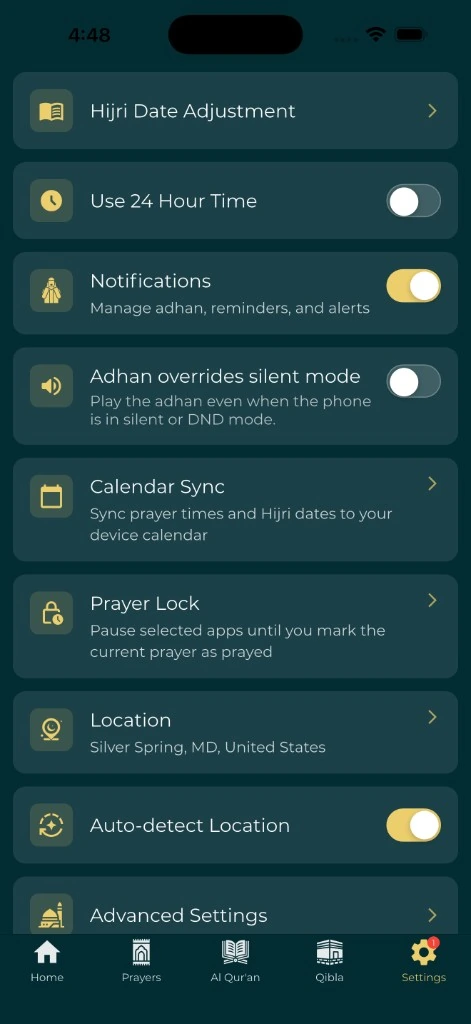
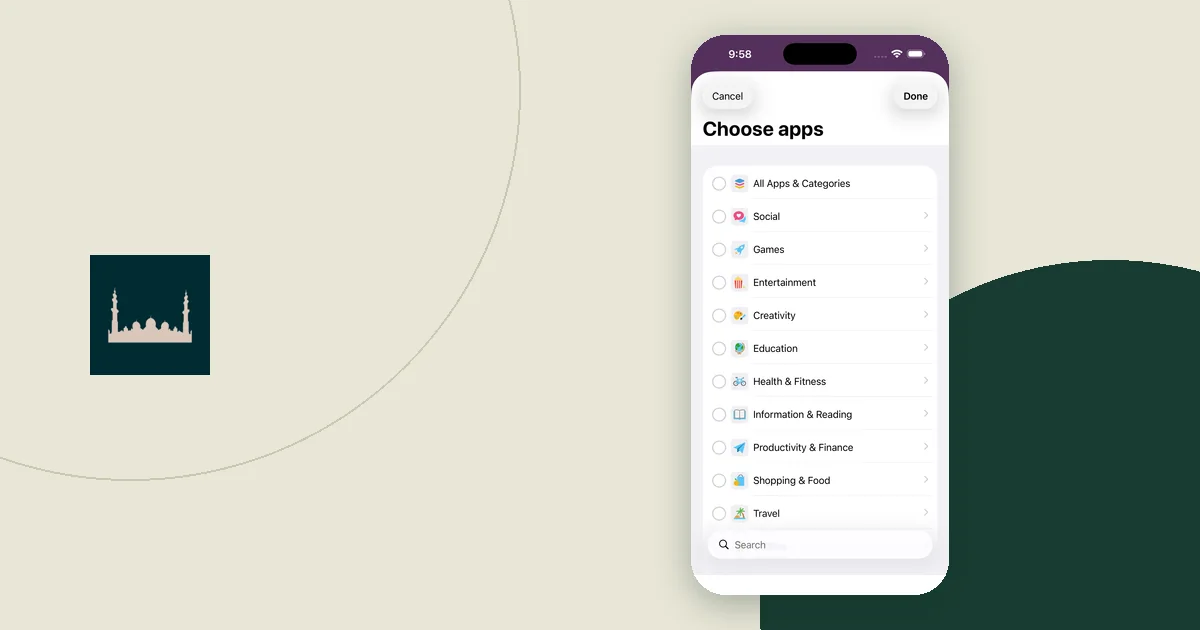
Prayer Lock is an optional Everyday Muslim feature. You choose the apps and the protected prayers. When a protected prayer begins, those apps stay unavailable until you record that prayer as complete in the tracker.
Setup differs by platform. The privacy policy says that on Android it uses the AccessibilityService API to detect the package name of the app currently open. It says the service does not read screen contents, messages, passwords or what you type. App-opening information is processed on your device and is not sent to Everyday Muslim's servers. On iOS, the feature uses Apple's Screen Time APIs and app-selection tokens stored on your device.
Record prayers honestly. The feature page says the app relies on your record and does not verify that you prayed. To stop using it, turn Prayer Lock off in the app or revoke its device access in system settings.
Test the whole plan
Test before you rely on it, ideally when you have time to adjust. Check each stage:
| Stage | What to check |
|---|---|
| Before | The timetable and any schedule match your intention |
| Start | You know whether it starts by hand or on a schedule |
| During | Silenced alerts stay quiet; allowed people, alerts and apps still work |
| End | You can return to normal use without searching for the setting |
| After a change | The changed part has been tested again |
If something does not match, change one setting and test that stage again. For a wider look at your home screen and apps, read the low-distraction phone setup guide.